Are you looking to convert a Google Takeout MBOX file to HTML and open it in a Web browser, but don’t know how to do it? If yes, then you’re on the right page. In this blog, we have written an automated method on how to convert Google Takeout to HTML & access it in a web browser.
Overview
Google Takeout is a free service provided by Google to download a copy of all your Google data in Gmail, Google Drive, Google Photos, Contacts, Calendar and more.
HTML is a file format that contains code to represent images, headings, paragraphs, etc in a web page. These files run on a web browser like Google Chrome, Microsoft Edge, Internet Explorer, etc and open in text editor software like Notepad.
Read more-
Reasons to convert Google Takeout to HTML
- With an HTML file, you get structured data that is organised with tags and elements.
- An HTML file contains text, images, links and styling that provides a good reading experience and a visually attractive page.
- An HTML file provides you universally accessible file that is accessed on different web browsers like Google Chrome, Microsoft Edge, Internet Explorer, etc.
- You can access an HTML file on different platforms, like various operating systems, hardware, and software.
Automated method to convert Google Takeout to HTML
With eSoftTools Google Takeout Converter software, you can easily convert a Google Takeout MBOX file to different file formats like PST, EML, EMLX, NSF and HTML. Moreover, you can migrate a Google Takeout MBOX file to cloud applications like Yahoo Mail and Office 365.
Key features
- Load Google Takeout MBOX file with two different options- Add File and Add Folder.
- Enables previewing all Google Takeout MBOX files & folders in the preview panel inside the software.
- Save the converted file at your desired location on your system.
- Can select Google Takeout MBOX files & folders that is to be converted and migrated.
- Save Google Takeout MBOX file into Outlook PST file with two different options
- Single PST for all Mailboxes: Save all Google Takeout MBOX files & folders in a single PST file.
- Separate PST file for each mailbox: Create a separate PST file for each Google Takeout MBOX mailbox folder.
- Import Google Takeout MBOX folder directly into Thunderbird.
- The email filtering feature helps users to filter emails according to Date Range ( From and To).
- The naming convention feature helps in naming different files with different names based on Subject, Date and from.
- Compatible to run on all editions of the Windows operating system, like Windows 11, 10, 8.1, 8, 7 & below editions.
Steps to convert Google Takeout to HTML
Download and install the eSoftTools Google Takeout Converter software on your PC.
Launch the software and click the Add file/folder button on the above menu.

A new screen will open, and select one option from the two options- Select MBOX file or Select MBOX folder.
Load and preview all MBOX files & folders in the preview panel inside the software.
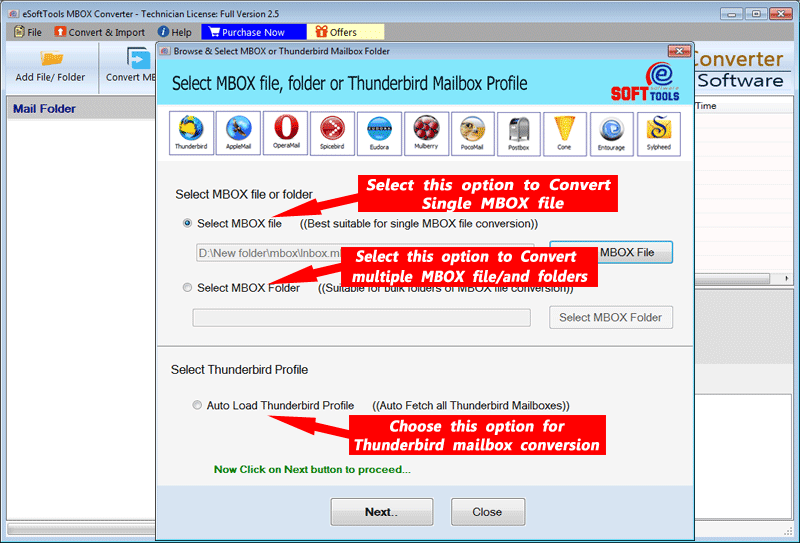
Make a selection of the needed files & folders and click on the Convert MBOX file button on the menu bar.
Choose the conversion format by selecting the HTML radio button.

Apply the mail filter and naming convention feature according to your requirements.
Browse the saving location where you want to save the converted HTML file.
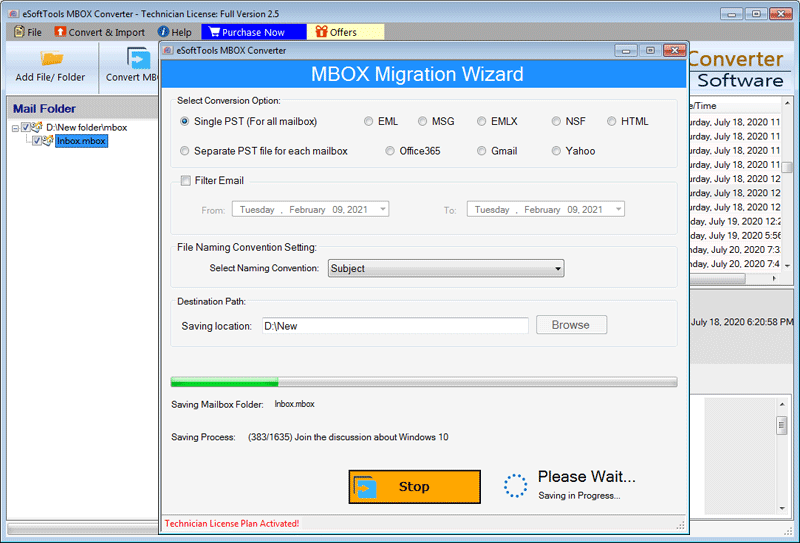
Click the Convert button and start the conversion process of Google Takeout MBOX file to HTML format.
Conclusion
Converting a Google Takeout MBOX file to an HTML file helps you to access the file in a web browser like Google Chrome, Microsoft Edge, and Internet Explorer. There are manual methods also available, but they have limitations and cannot be used in batch conversion. The automated method explained above can be used in bulk production.


No Comments yet!