Are you looking to export emails from Gmail to another IMAP-based email application? Are you searching for a reliable solution? If yes, this article will provide the answer. Here, we will discuss the best solutions to easily migrate Gmail emails to IMAP accounts.
Overview
These days, Google Gmail is among the most popular apps, utilized by a large user base. It allows users to handle standard email functions with ease and in a safe environment.
Gmail is now available for business professionals within G-Suite/Google Workspace. This means users can now use Gmail for both personal and professional emails.
Gmail offers all the features expected from a web-based email application, including accessing emails via a web browser, viewing them simultaneously on multiple devices, storing profile data on cloud servers, and more.
Gmail users frequently face scenarios requiring them to migrate Gmail emails to IMAP-based mail applications like Roundcube, Horde, AOL, Yandex, Office365, and others.
Also Read:- How to Transfer Gmail to Yahoo Mail?
Smart Solution to Export/ Migrate Gmail Emails to IMAP Accounts
At times, users find it necessary to export Gmail emails into IMAP-based mail applications. The sole solution to assist you with this task is the eSoftTools Gmail to IMAP Migration tool. This solution is specifically designed to export emails from Gmail mailboxes to IMAP-based mail apps. This single tool is capable of migrating emails from Gmail to all IMAP-based mail applications. Additionally, it possesses special features and capabilities to easily and securely perform Gmail email migration.
How to Export/ Migrate Gmail Emails to IMAP Accounts?
- Install and launch the Gmail to IMAP Email Migrator on a Windows machine.
- Select the Gmail or G Suite option from the drop-down list of email apps.
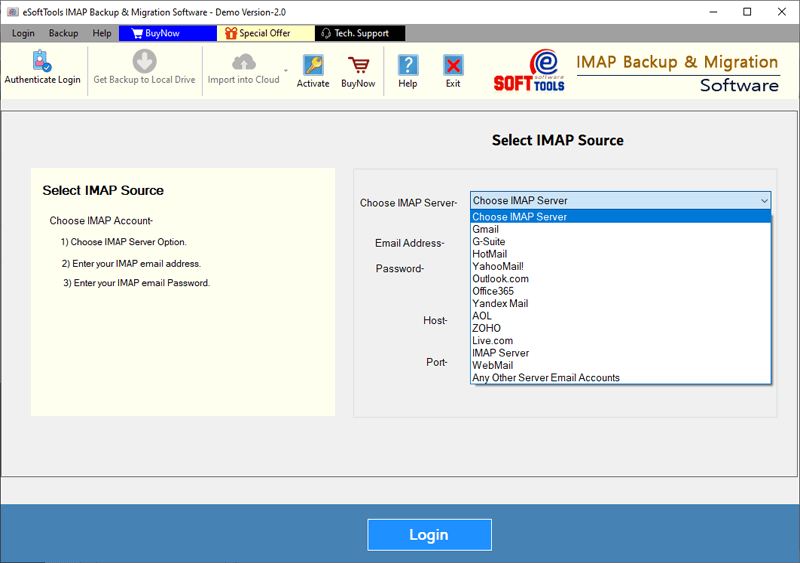
- Enter the email address of your Gmail account and the password for the third-party app.
- Click the Authenticate Login button to load all Gmail account mail folders.

- Select the required mail folders and click Import to Cloud.
- Select the Import to IMAP option from the next screen and click Next.

- Input your IMAP account details: email address, password, port, and hostname.

- Sign in to your IMAP account and click the “Import to IMAP Account” button.

Advanced Features of Gmail to IMAP Mail Migration Tool
- Easily migrate emails from Gmail/G-Suite account to the IMAP Mail app.
- Select folders from your Gmail mailbox and export them to IMAP accounts.
- Transfer all mailbox items in a Gmail account, including all their related elements.
- Move emails that arrive within a certain date range using the email filtering option.
- This is available on all versions of the Windows OS, including 11, 10, 8.1, 8, 7, XP, Vista, and older.
- Its user interface is intuitive and easy to use, which helps people migrate efficiently.
Conclusion
This article explains how to Export/ Migrate Gmail Emails to IMAP Accounts. Any user, technical or non-technical, can use this method to migrate unlimited emails quickly, easily, and error-free. Try the demo version of the eSoftTools Gmail to IMAP Migration Tool to test all its features for free.


No Comments yet!