Saving Outlook emails to a hard drive is used for backup and transferring emails from one account to another. In this blog, you will learn the automated method to save emails on the hard drive. This method is save Outlook 2021, 2019, 2016 emails to a Hard drive.
Overview
A hard drive has become an essential tool for backing up data. Because users understand the need to have a backup of digital data it also becomes essential to have a backup of email data. It becomes necessary to save the emails from Outlook to the hard drive.
To have a backup of Outlook mailbox you can save the Outlook mailbox on the hard drive.
The best method to save Outlook 2021, 2019, and 2016 emails to hard drive
To have a backup of emails from Outlook we need to have PST files which can be stored on the hard drive. So to have a backup we need to convert OST files to PST files of Outlook. The best-automated method to convert OST files to PST files is eSoftTools OST to PST converter software
This is the automated, time-saving, and direct method to save OST files in multiple file formats on the hard drive.
This software converts OST files into multiple file formats such as PST, EML, EMLX, MSG, MBOX, HTML, etc and saves them on a hard drive in your desired location.
In addition, this software converts the orphaned, corrupted and inaccessible OST files to PST files and saves them on the hard drive.
This software provides the facility to preview emails of the OST files in the preview panel of the software.
You can filter emails with the email filtering option and save emails with unique names with the naming convention feature.
Also Read:- Best Outlook OST to PST Converter Software
Follow these steps to successfully save emails from Outlook 2021, 2019, and 2016 on the hard drive of your computer.
- Download, install, and launch the software on your computer
- Click on the “Select OST” button, add OST files from local drives, and load them in the OST Converter.
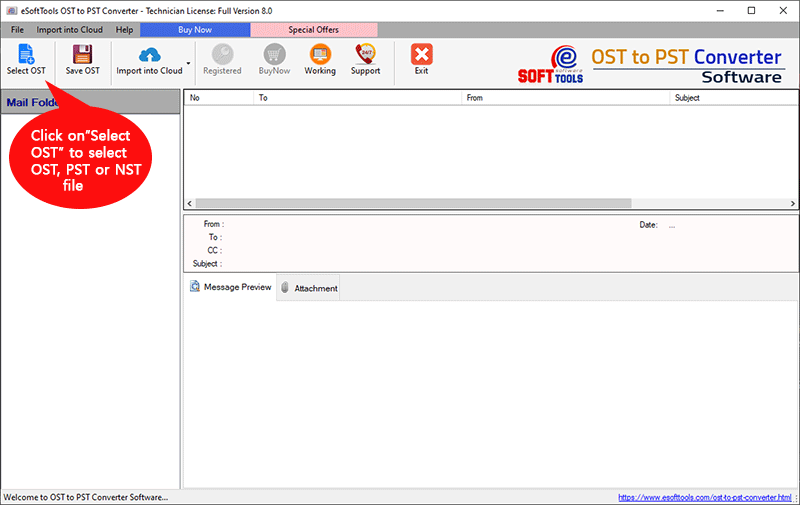
- In the preview panel, you can preview imported OST files and folders.
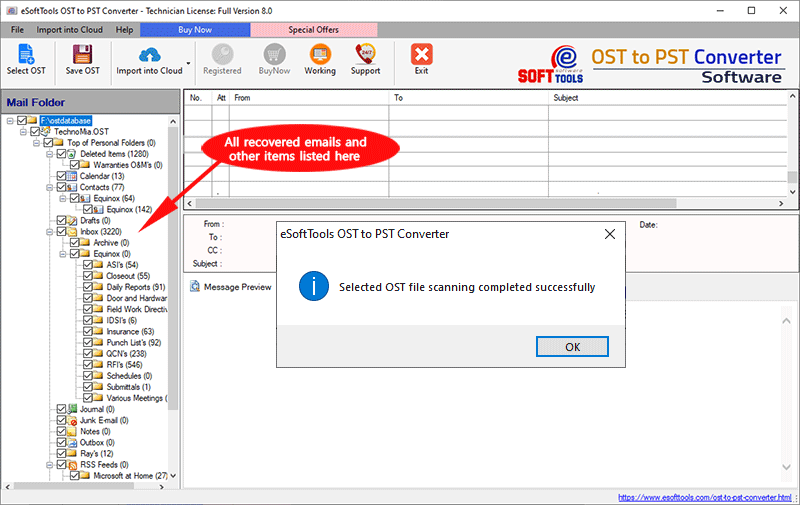
- Select the necessary mailbox folders from the OST files for exporting them.
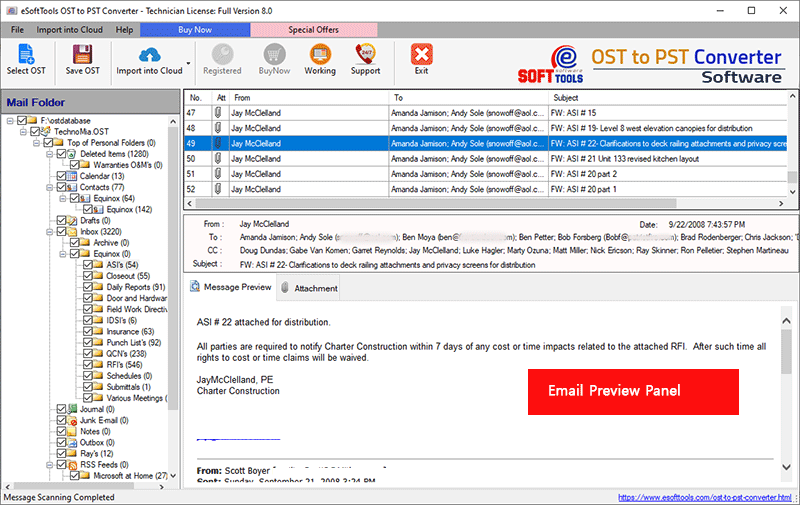
- Press the ‘Save OST’ button and select the ‘Export to PST’ radio button from the OST conversion options.
- If you want to split an OST file select the ‘Split PST’ option and choose a size from different size ranges.
- Browse the location where you want to save the PST file to your computer.
- Choose the ‘Mail Filter’ option if you want to filter email (based on date).
- Click on the ‘Convert’ button and begin the process of OST to PST conversion.
Conclusion
By having a backup of your Outlook mailbox on your hard drive you have peace of mind about Outlook emails. In this blog, we have explained the automated method eSoftTools OST to PST Converter software. With a few clicks, you can save Outlook mailbox data to the hard drive.


No Comments yet!