Have you encountered a PDF file that is locked with a Password and making it difficult to access the content? If yes, then you landed on the right page. In this blog, we have explained an automated method on how to remove password from a PDF file on Windows. This tool will help you in accessing the content of the PDF file that you need frequently.
Overview
PDF stands for Portable Document Format. This file format was created by Adobe and is used to present and exchange documents regardless of the software, hardware, and operating system used in an easy and reliable way.
Read More-
Reasons to remove a Password from a PDF file on Windows
- Removing the password from a PDF file makes it easier to access and share with others.
- Removing a password helps in accessing a PDF file to users who don’t have a password and makes it compatible with software and devices that don’t support password input.
- If the password of a PDF file is forgotten/lost, then it may lead to the loss of valuable data that is urgently needed.
- Password protection may cause inconvenience to users if the PDF file is to be used frequently on multiple devices. So, removing passwords helps in improving user experience.
- When a PDF file is to be shared among multiple team members, removing the password is a good choice. It eliminates the time needed for inputting the password.
Automated method to remove a password from a PDF file
eSoftTools PDF Password Remover Tool helps users who want to make a PDF file free from all kinds of restrictions. It removes restrictions such as Content Copying, Page Extraction, form-filling and other restrictions from PDF files.
Key features
- Unlock the password from a single or multiple PDF files.
- Removes passwords or restrictions from PDF files of any file size.
- Moreover, it offers to add restrictions and encrypt unprotected PDF files.
- It has a feature of saving an unlocked PDF file at a desired location on your computer.
- Has a simple and intuitive graphical interface that can be used by anybody.
- Maintains data security while unlocking a protected PDF file.
- Compatible with all Windows Operating systems like Windows 11, 10, 8.1, 8 & below versions.
Steps to remove the password from a PDF file
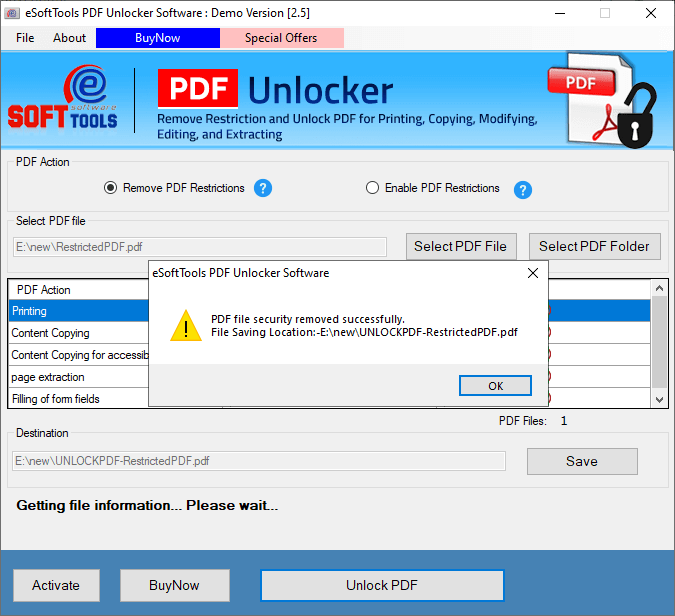
Download and launch eSoftTools PDF Password Remover Software on your computer.

Select the option Unlock PDF file to remove restrictions and passwords from PDF files.

- Now select from the options: Select PDF files or Select PDF folders
- Select PDF files: If you have PDF files, then use this option.
- Select PDF folders: If you have PDF folders, then use this option.

After file uploading, choose the options to save the unlocked PDF file on your system.

At last, click the Unlock PDF button and insert the PDF file password and remove the PDF password protection.
Conclusion
After reading the above blog, you can easily remove the password and restrictions from your PDF files with the help of the tool. With a few steps and clicks, you can remove a password from a PDF file, and it is not a challenging task for you from now on. In the demo version, you can remove restrictions and passwords from multiple PDF files, but with the eSoftTools Software watermark on PDF pages.


No Comments yet!