Email communication has become an important part of life for business organisations. Now all businesses are going online, so emails have become important for businessmen. In some situations, people want to migrate HostGator emails to Gmail, but they are not able to find the right method to import all emails from HostGator to a Gmail account. To help these users, we have explained a professional method to migrate HostGator emails to a Gmail Account in this blog.
HostGator is a US-based company that provides services in Web hosting and offers various plans and tools to its customers, including website builder tools for bloggers and small businesses. It provides domain names to small and medium-sized businesses and offers email hosting services.
Gmail is a popular email service provided by Google that helps users send, receive, and manage emails through a web browser. It offers other services like Google Sheets, Google Docs, chat, etc and provides 15 GB of storage space. It offers advanced security features that protects data from virus, malware and any unwanted securty threat.
User Query: We are running a small business where we have been using HostGator to manage emails for a long time. We want to migrate HostGator emails to Gmail because of a large collection of emails. Now we are facing difficulties in managing a large number of emails in HostGator. Can anyone suggest a method to migrate HostGator emails to Gmail?
Why migrate HostGator emails to a Gmail account?
Users may have different reasons to migrate HostGator emails to Gmail account, but a few of them are explained below.
Intuitive Interface: Gmail provides an intuitive and fast interface that provides users an overall good experience compared to cPanel-based solutions like Horde or Roundcube.
Large storage space: Gmail provides a large storage space for its users to store emails, as compared to HostGator. User can manage a large collection of emails in their Gmail account easily, as compared to HostGator.
Email backup: The User can use Gmail as an email backup option for their important emails. If their emails somehow got accidentally deleted from the HostGator, then the user can find a copy of the emails in their Gmail account.
Closure of HostGator account: If users of the HostGator email account want to close their account, then they can store a copy of HostGator emails in the Gmail account for future use.
Read Also –
Manual method to migrate HostGator emails to a Gmail account
The manual method can be used by importing emails using the POP3 server settings of the HostGator account to the Gmail account.
- Open the Gmail website on a web browser.
- Log in to your Gmail account by inputting your account credentials, such as username and password.
- Click on the Gear icon in the top right corner.
- Click on the See all settings button and press the Account and Import tab.
- Click on the Add a mail account button and your HostGator email address.
- Click on Next and select the option Import emails from my other account (POP3).
- Click Next and provide HostGator’s login details
- Username: – provide a user name (any name
- Password: – enter password of your hostgator email account
- POP Server: – mail.yourdomain.com
(replace yourdomain.com with your actual domain name) - Port (POP3): 995 (with SSL)
- Port (POP3): 110 (without SSL — not recommended)
- Select and enable other options like leave a copy of the message on the server, secure SSL connection, archive messages, etc.
- At last, click the Add Account button, and emails will transfer from the Hostgator email account to Gmail.
Professional method to migrate Hostgator emails to Gmail account
The professional method to migrate HostGator emails to a Gmail account is to use the eSoftTools IMAP & Backup Migration tool. This tool allows users to migrate IMAP account emails to cloud applications like Gmail, Yahoo Mail, Outlook.com, office 365 and other IMAP email accounts.
Apart from migration this tool enables users to take backup of IMAP email account emails in different file formats like PST, EML, EMLX, HTML, MSG, MBOX, PDF and Thunderbird.
It preserves the email formatting and structuring during backup and migration process. The backup and migration process is done by this tool with 100% accuracy and without any data loss.
How to migrate Hostgator emails to Gmail account?
Download the eSoftTools IMAP Backup & Migration software on your Windows System.
Select the IMAP server option from the drop-down menu.

- Enter your HostGator email account credentials, like email address, password and IMAP details like
- IMAP server: mail.yourdomain.com(replace yourdomain.com with your actual domain name)
- Port: 993

Load all the HostGator mailbox folders in the software and select the folders required for backup.

Click on the Import to Cloud button and select the Import into Gmail option from the list of options.

Click Next, and Import to Gmail or Google Workspace screen will open.
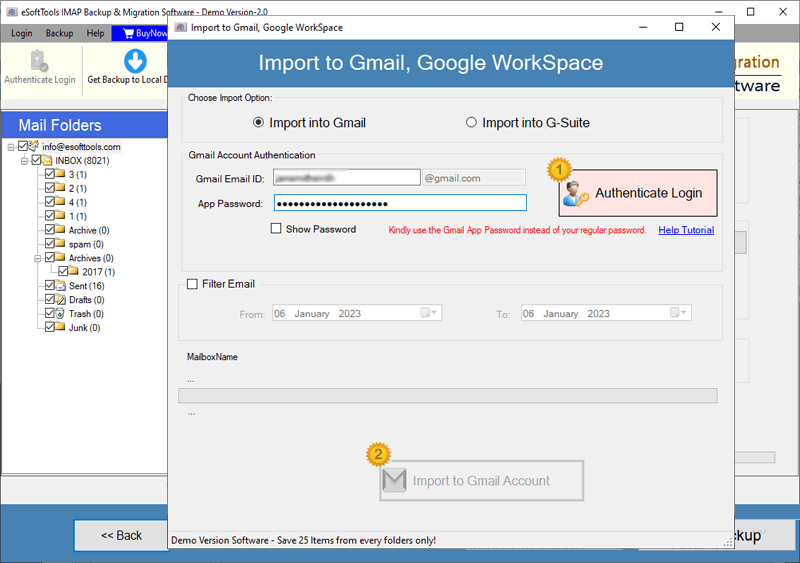
Enter the Gmail email address and the Google Application Password in the required fields.

Apply the email filtering feature if you want to filter emails according to Date.
At last, click the Import to Gmail button, and the migration of emails from Hostgator emails to the Gmail account will start.
Conclusion
Migrating emails from Hostgator to Gmail helps and improve business communication. The manual method is available but it have limitations like it can be used for small-size mailbox and doesn’t provide 100% accurate result. Although, the professional method is accurate, fast and ideal for large mailboxes. By moving HostGator mailbox to Gmail ensures user have data safety and backup option.
FAQs
Q. Is there any loss of data during migration?
Ans. No, there is no loss of data using eSoftTools IMAP Backup & Migration tool. It will migrate whole data with accuracy and fastly.
Q. Does it provide preview of data during migration?
Ans. Yes, it all the folders of the HostGator mailbox in the tree structure in the preview panel.
Q. Can I install this tool on Mac OS?
Ans. No, it is suitable for any editions of Windows Operating System like Windows 11, 10, 8.1, 8, 7 & below editions. It doesn’t run on MAC OS.
Q. Can I move few folders from HostGator email account to Gmail?
Ans. This tool previews the folders in the tree structure in the preview panel and can select the folders like Inbox, sent, etc to migrate from HostGator email account to Gmail.


No Comments yet!