In the modern era of email management, there are two types of file formats that are commonly used are EML and MSG. Both file formats are used in Microsoft Outlook, and the only difference between them is that EML files only store individual emails and their attachments, whereas MSG files store emails, contacts, calendars, tasks and appointments in a single file. In this blog, we have written an automated method on how to convert EML to MSG file format.
Overview
EML file stores individual emails, headers and attachments in simple text format and is supported by email clients like Windows Live Mail, Outlook Express, Apple Mail, Thunderbird, etc.
MSG file stores individual emails, contacts, calendars, tasks and attachments in a complex binary format and is supported by Microsoft Outlook.
Read also-
Reasons to convert EML to MSG file format
The advantage of conversion is helpful if you are a Microsoft Outlook user because MSG files are supported only by it.
Accessibility: MSG files are easier to read and open for users who use Microsoft Outlook. This point should be considered if you are converting to EML file to MSG format.
Compatible: MSG files are compatible with Microsoft Outlook because it is its native file format.
Backup and Archiving: MSG files are for systems that have Microsoft Outlook and can be used for backing up Outlook data.
Automated method to convert EML to MSG file format
With the eSoftTools EML converter suite, you can easily convert EML files to MSG format. This software helps you convert EML files to MSG and other file formats like PST, NSF, MBOX, EMLX, HTML, etc. Moreover, you can migrate EML files to cloud applications like Office 365 and Gmail. Its user-friendly interface makes it easy for non-technical people to do conversions.
Key features
- Convert both EML and EMLX files with attachments.
- Allows to addition of multiple EML folders in the software.
- Preview of EML files/folders before conversion in the preview panel.
- Maintains the folder hierarchy and data formatting while converting.
- Software preserves email formatting and maintains email meta properties (To, cc, bcc, subject, Date & Time) during conversion.
- Consistent with all editions of the Windows Operating System, such as Windows 11, 10, 8.1, 8, 7 & below versions.
- Allows saving PST files with password protection.
Step-by-step approach to convert EML to PST
Download and install the eSoftTools EML Converter Suite software on your system.
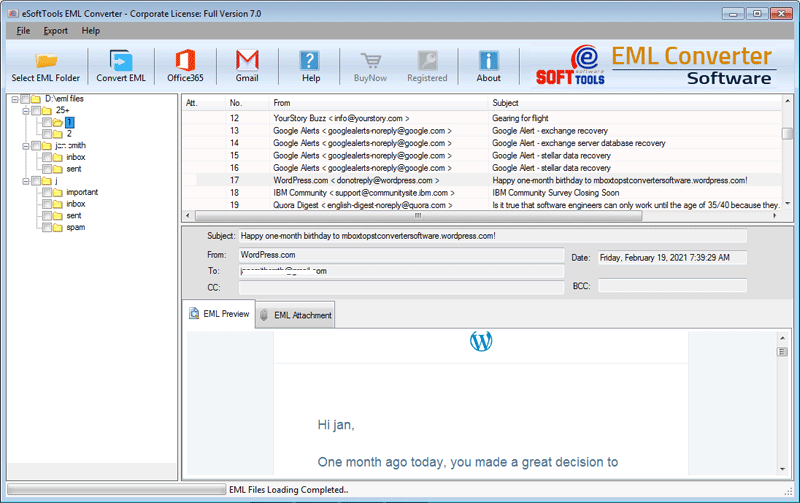
Click on Select EML folder (To choose multiple EML folders) or EML files (To choose EML files) and click the Next button to add files and folders in the software and start scanning.

In the preview panel, you can view EML folders and select the EML files to be converted into PST files.

Click Convert EML, and the conversion window will open. Choose Export in MSG file format from the options in the conversion wizard.
Browse the location where you want to save the MSG file on your system.
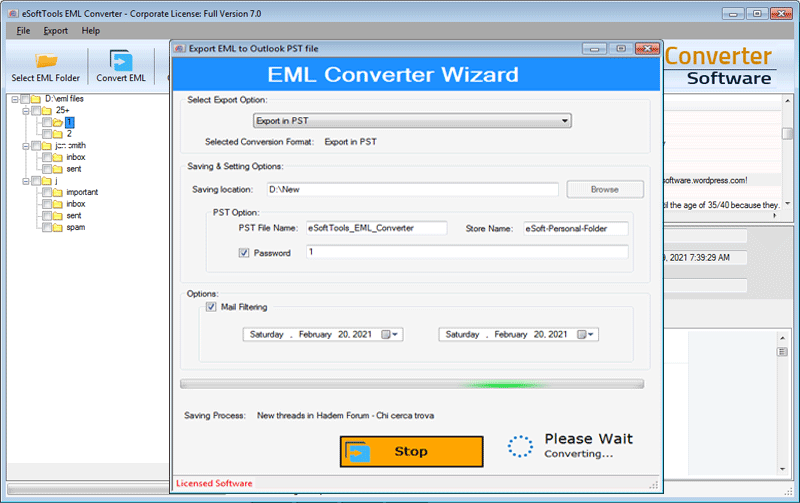
Apply the mail filtering if you want to filter emails according to the Date Range (From and To).

Click the convert button and start the conversion process from EML to MSG.
Conclusion
In the above blog, we have explained an automated method that can convert EML files to MSG format in batches, and there is no need for the installation of MS Outlook for conversion on your system. However, there are manual methods available, but they require MS Outlook installation and cannot handle data in batches. They are more prone to error and have a chance of data loss. If you have any doubts, you can use the free demo version of the software and check how the software works.


No Comments yet!