Are you tired of messy and disorganised duplicate emails in the Thunderbird mailbox? If yes, then read this blog, you will know the manual and automated methods to remove duplicate emails from Thunderbird.
What is Thunderbird?
Thunderbird is a free desktop-based email client made by Mozilla. It can store, sort, and search emails in one place, and you can add add-ons to add extra features in Thunderbird.
Why do Remove Duplicate Emails from Thunderbird?
- Synchronisation problem- Sometimes synchronisation problems between Thunderbird and the email server result in the duplication of emails.
- Serverside issues- Sometimes email server sends duplicate copies of emails to the Thunderbird email client resulting in the duplication of emails.
- Manual Actions– Sometimes, accidentally clicking the send or receive button multiple times results in the duplication of emails.
- Forwarding and replying to Messages- When forwarding any email or replying to any email in a group conversation, there are chances of duplicate emails in Thunderbird.
Methods to remove duplicates emails from Thunderbird
- Manual Method
- Automated Method
Manual Method
To Remove Duplicate Emails from Thunderbird, you have to follow these steps.
- Backup First- You have to take a backup of the email messages to ensure if anything goes wrong in removing the duplication of emails there is a backup of emails.
- Sort emails by Subject & Date – You can sort emails by subject and date to identify duplicate emails in the mailbox before removing them.
- Use Add-ons- There are several add-ons available to remove duplicate emails. One popular add-on is “Remove Duplicate Messages”.
- Open Thunderbird software on your system.
- Go to Tools in the menu bar, then to the settings menu, and click add-ons.
- Then, search for the “Remove Duplicate Messages” add-on in the search bar and install it.
- Once installed, restart Thunderbird.
- After a restart, go to the folder of emails you want to de-duplicate.
- Right-click on the folder and select “Remove Duplicate Messages”.
- Follow the steps to delete duplicate emails.
Also Read:- How to Delete/Remove Duplicate EML files?
Automated Method
In the automated method use eSoftTools Thunderbird Email Duplicate Remover software to remove duplicate emails from the the mailbox. You can add Thunderbird email file with two options- selecting the MBOX file and selecting the MBOX folder. In the preview panel, you can see the folders of emails and check for duplicates. You can select the folders from which you want to delete duplicate emails.
You have two options for saving – one on the local computer or storing them in the Thunderbird local folders. It erases duplicate emails from all folders of the Thunderbird mail files, such as MBOX, MSF, SBD, etc. It can work with all versions of the Mozilla Thunderbird software. The graphical interface of this software is so easy to use that, in a few clicks, you can remove duplicate emails from Thunderbird mail files. It can work with all editions of the Windows Operating System, such as Windows 11, 10, 8.1, 8, 7, Vista, XP, and older versions. In a few steps, you can remove duplicate emails from a Thunderbird file.
Steps to Remove Duplicate Emails from Thunderbird
- Download and install eSoftTools Thunderbird Email Duplicate Remover Software on your system.

- Click the Add File/Folder button and choose one of the options from the file adding options.

- You can preview the emails and other contents of the Thunderbird file in the preview panel.

- Select the files/ folders containing duplicates and click the Remove Duplicates button.

- Apply the required email de-duplication settings and savings settings.
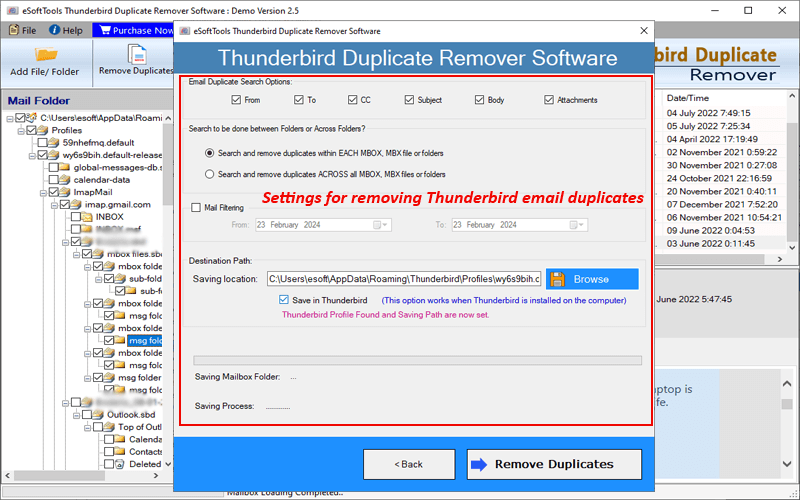
- Lastly, click the Remove Duplicates button and start removing duplicate emails.

Conclusion
Removing duplicate emails in the Thunderbird is essential for managing storage and enhancing performance. While manual methods exist, they are not essential for large volumes of emails. Using the automated method eSoftTools Thunderbird Email Duplicate Remover Software provides you the easy solution.


No Comments yet!