In this blog, we are going to explain an automated method on how to import Windows Live Mail to Outlook. We will explain the automated method step by step for those users who want to switch from Windows Live Mail to Outlook.
Overview
Windows Live Mail is a free email client and is a successor of Outlook Express and Windows Mail. It was discontinued by Microsoft in 2012, and no updated version has been launched by Microsoft since then. It manages emails, contacts, calendars, tasks, notes, etc in the EML file format with an internet connection.
Microsoft Outlook is a paid version launched by Microsoft with advanced features. It efficiently manages emails, contacts, calendars, tasks, notes, etc in the PST file format. Outlook is connected with Microsoft Exchange Server and is the most famous email client for corporate users.
Reasons to import Windows Live Mail to Outlook
- As Microsoft has discontinued Windows Live Mail and no updated version has been launched, users are thinking of switching email clients.
- If a user shifts to a new work location where Microsoft Outlook is used and was previously using Windows Live Mail, then there is a need to shift emails to Microsoft Outlook.
- Microsoft Outlook has various advanced features, more security features and an interactive graphical interface that makes users shift to it.
- For a better overall experience, users prefer to use Microsoft Outlook rather than Windows Live Mail.
Also Read: How to Transfer/Migrate Windows Live Mail to Yahoo Mail?
Automated method to import Windows Live Mail to Outlook
With eSoftTools Windows Live Mail converter software, users can easily import emails from Windows Live Mail to Outlook. It allows users to convert the .eml file format of Windows Live Mail to the .pst file format of Outlook. Moreover, it converts Windows Live Mail files & folders to other file formats like MSG, EMLX, MBOX, NSF (Lotus Notes/HCL Notes), Thunderbird, etc. Apart from it, users can migrate Windows Live Mail files & folders to cloud applications like Gmail, Yahoo Mail, Office 365 and IMAP email accounts.
Key features
- Perform conversion and migration of WLM files & folders in bulk.
- Can auto-detect Windows Live Mail profiles/mailboxes and load them into the software.
- Preview files and folders of the Windows Live Mail in the preview panel.
- Provide the option of selecting files & folders of WLM and do conversion or migration of selected files & folders.
- Save and convert WLM files & folders in the PST format with two options- Single PST(for all mailboxes) and Separate PST for each mailbox.
- Export and save WLM files & folders in the MBOX format with two options-
- MBOX (folder-wise) – Create a folder-wise MBOX file.
- MBOX (Single MBOX)– Create a single MBOX for all selected folders.
- Have a helpful feature of filtering emails that filters emails according to Date.
- With the naming convention feature, users can save and name emails according to Subject, Date and From.
- Browse and save the converted file at your desired location on your computer.
- Compatible with all editions of the Windows Operating System, like Windows 11, 10, 8.1, 8, 7 & below versions.
Steps to import Windows Live Mail to Outlook
- Download and install eSoftTools Windows Live Mail converter software on your Windows System.
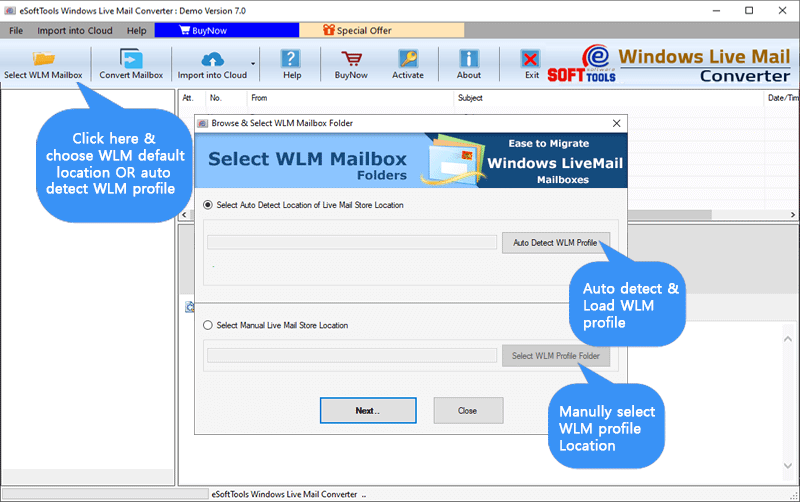
- Launch the software and press the Select WLM Mailbox button on the above menu bar.

- A new window will open, and select from the two options-Auto-detect WLM profile button to auto-detect and load the WLM profile or Select WLM Profile folder button to manually select WLM profile location.
- Preview WLM files & folders in the preview panel of the software.
- Select the needed WLM files & folders and press the convert Mailbox button on the above menu bar.

- A new conversion window will open, and select the conversion option as PST available with two options.
- Apply mail filter, naming convention and saving location according to your needs and requirements.

- At last, click the Convert button, and the conversion process will start.
Conclusion
Many users look for a way to convert WLM files to Outlook files. There are manual methods also available, but they have limitations and have drawbacks. However, the automated method is easy to use and error-free. In the demo version, you can check how the software works by converting 25 data items from each WLM folder into another file format. If you are happy with results, you can purchase the license for the software for further use.


No Comments yet!