Are you struggling to import PST to your Zoho Mail account without Outlook? If yes, then you don’t need to panic. In this blog, we have described an automated method that will assist in importing PST files to a Zoho Mail account.
Zoho Mail webmail is a free email service that provides email hosting service with a custom domain name to small business customers and provides tools to manage contacts, calendars and tasks.
PST is the Outlook data file that stores emails, calendars, tasks, notes, etc, which is created when a user adds an email account that uses the POP3 protocol to Outlook. This file is used for backing up Outlook data and for transferring Outlook data from one computer to another.
Read Also –
Why import a PST file to Zoho Mail?
Zoho is a cloud-based application, so there are many advantages to using the Zoho webmail service. A few reasons to import a PST file to Zoho Mail are explained below.
Accessibility: Zoho webmail service can be accessed on any device, be it a laptop, desktop computer, tablet, or smartphone, with the help of a web browser.
Backup option: Zoho webmail service can be used as a backup option that can be used when the PST file gets corrupted or is not open for any reason.
Good interface: Zoho webmail provides a user-friendly interface that provides a good overall experience in email management and reading emails.
IMAP Server settings of Zoho Mail
Incoming Server Name: imap.zoho.com
Port: 993
Requires SSL: Yes
Username: Your full Zoho email address (e.g., username@zoho.com)
Password: Your Zoho Mail password (use application-specific password if two-factor authentication is enabled)
How to import a PST file to Zoho Mail automatically?
eSoftTools Outlook PST recovery software is the best and reliable tool for importing PST files to Zoho Mail. This tool is used by many users all around the world to import PST files to IMAP email accounts like Zoho Mail.
This tool has a user-friendly interface that makes this software easy to use. Apart from migration to cloud applications, this tool converts PST files to other email file formats like EML, EMLX, HTML, MHTML, MSG, MBOX, Zimbra, Thunderbird, ics, vCard, CSV, etc.
Many business organisations want to migrate their email data from local servers to cloud servers, so this tool helps in doing so.
Steps to import a PST file to Zoho Webmail without Outlook
Download and install eSoftTools Outlook PST recovery software on your Windows PC.

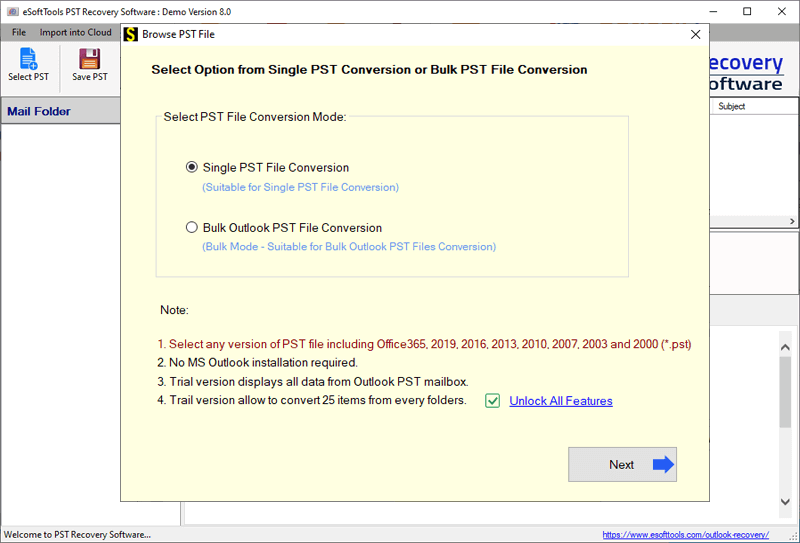
- Press the Select PST button and choose the conversion mode
- Single PST File Conversion: To select and load a single PST file into the software.
- Bulk PST File Conversion: To select and load multiple PST files
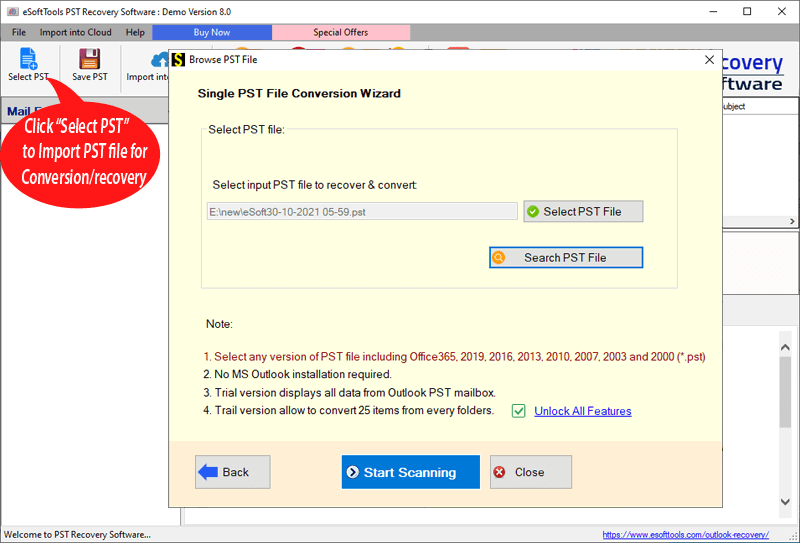
Select the PST file and click the Start Scanning button
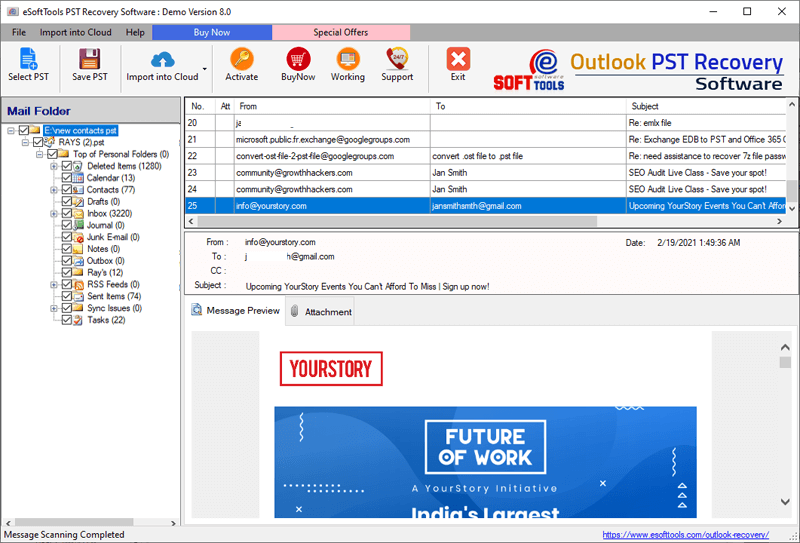
Preview the PST files & folders in the preview panel in the tree structure.

Select the PST files and folders that are required for migration.

Click the Import into Cloud button and choose the Import PST to IMAP option.
Enter your Zoho webmail email address, Password and IMAP details as
- IMAP Host: imap.zoho.com
- Port: 993

Apply the Mail filter feature (optional) if you want to filter emails according to Date.
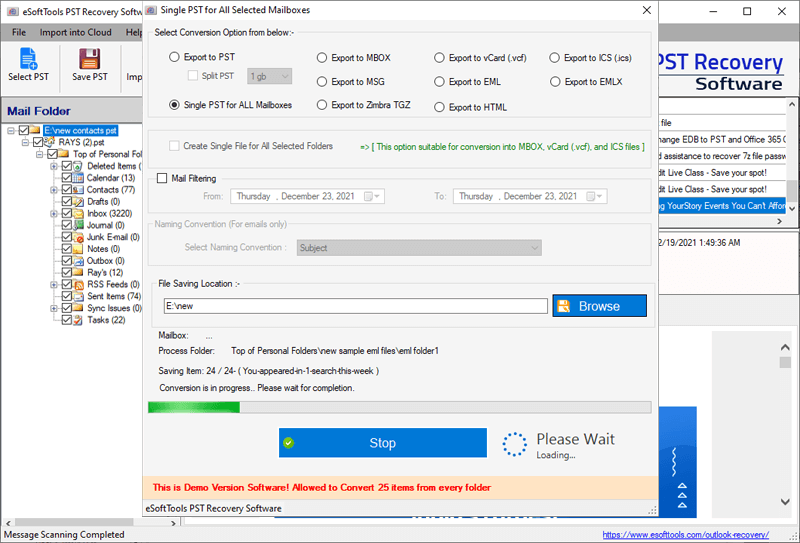
At last, click the Convert button, and the migration process will start.
Benefits & features of Outlook PST Recovery Software
- Can repair corrupted/damaged PST files and load them into the software.
- Extracts all data from PST files, be it emails, contacts, calendars, tasks, notes, etc.
- Can load multiple PST files and does conversion & migration in bulk.
- Have a select or search PST file option that can select the PST files or search for PST files from the local drive automatically.
- Preview of all PST data, like emails, contacts, calendars, tasks, notes, etc, in the tree structure.
- Preserves the folder hierarchy and email meta properties like To, cc, bcc, subject, date and from during conversion and migration.
- Migrate the PST file to cloud applications like Gmail/Google Workspace, Yahoo Mail, Office 365, Outlook.com, etc.
- Have a naming convention feature that saves and names emails according to Date/Subject/From.
FAQs
Q. Can I import PST files to Zoho Mail in bulk?
Ans. Yes, in eSoftTools Outlook PST Recovery software, users have the option to select multiple PST files and load them into the software to migrate them to Zoho Mail.
Q. Is it possible to filter emails that are required for migration to Zoho Mail?
Ans. Yes, this tool has an optional feature of email filtering that filters email according to Date by specifying the Date Range (From and To).
Q. Do I need technical knowledge for importing PST files to Zoho Mail?
Ans. No, the user doesn’t need technical knowledge for importing PST files to Zoho Mail while using the software, but requires technical knowledge during the manual method.
Q. Is an Outlook installation required for migration?
Ans. No, Outlook installation is not required for migration while using the third-party application like eSoftTools Outlook PST Recovery software.
Q. Does this software work on both Mac and Windows OS?
Ans. This software works only for Windows OS and runs on all editions of Windows Operating System, like Windows 11, 10, 8.1, 8, 7 & below editions.
Conclusion
Import PST to Zoho Mail Account interface provides great benefits that a user has while using Cloud applications. We have provided the best professional solution that does the migration without any data loss and in an effortless manner. The eSoftTools Outlook PST Recovery software also helps in migrating PST files to other cloud applications like Gmail/Google Workspace, Yahoo Mail, Office 365, etc. If the user wants to check how the software works, then the user can use the free demo version. In the demo version, 25 emails from each PST folder are converted to other email file formats or migrated to cloud applications.


No Comments yet!