Are you looking for a way to migrate Outlook items from PST files to an Office 365 account? If so, this article will provide the best answer. In this blog post, we’ll show you how to upload/import a PST to an Office 365 mailbox.
Overview
Outlook is a well-known and widely used desktop email client offered by the Microsoft brand. With this email client, users can easily share emails and perform various other tasks such as managing contacts, calendars, tasks, notes, and more.
MS Outlook also provides users with the facility to save copies of their mailbox items and tasks in a data file called “PST.” Outlook secures all sent/received emails, contacts, calendars, tasks, notes, journals, and other mailbox items in PST files.
Microsoft has also launched a web-based version of MS Outlook, commonly known as Outlook 365/Office 365. This service allows users to access their Outlook email profiles directly via a web browser. Additionally, the Office 365 application has many other benefits, which is why users are moving from the Outlook desktop app to the Office 365 service.
Also Read:- How to Transfer PST Contacts into Office 365 Easily?
Benefits of Upload/ Import PST to Office 365 Mailbox –
- Outlook is a desktop-based app meant for use on just one computer. Meanwhile, Outlook 365 is a cloud service; users can access their email profiles from several computers at once using any web browser.
- Outlook stores user profile data locally on their computers. But with the Office 365 service, users can store their mail profile data on cloud servers. This helps users free up storage space on their local drives.
- Users will need a Windows-based computer to use Outlook. On the other hand, they can access Office 365 services from any device using a web browser.
Quick solution to Upload/ Import PST to Office 365 mailbox
Easily export Outlook mailbox items from a PST file to an Office365 account using eSoftTools PST to Office365 Converter software. This software helps users export data from one or more PST files to Office365 mailboxes simultaneously. Users can export all Outlook mailbox items, including emails, contacts, calendars, etc., from PST files. This will export all the data with its complete information to an Office365 account. Users can also save Outlook PST file data to the primary mailbox of the Office365 account and a newly created custom folder. Additionally, this tool offers several smart functions for quick migration.
How to Upload/ Import PST to Office 365 mailbox?
- Run the PST to Office365 Migrator and click ‘Select PST’.

- Select Single file conversion or Bulk file conversion mode and click Next.
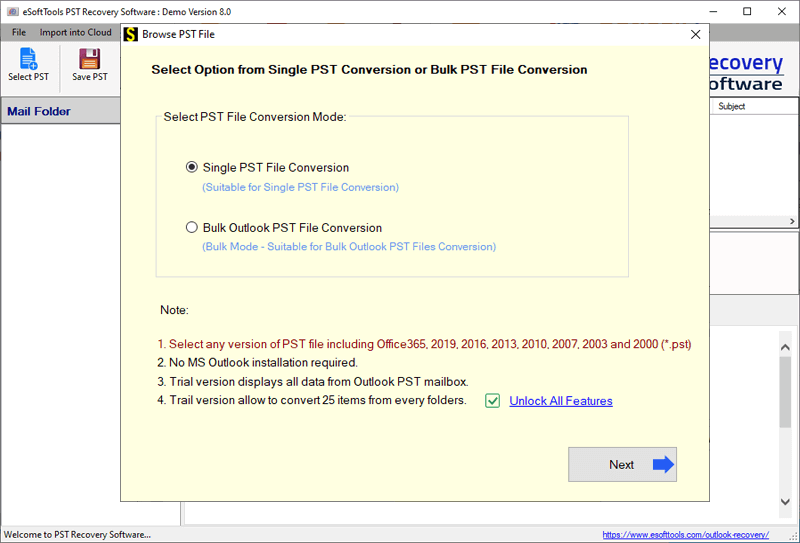
- Add Outlook PST files to the software, then click Start Scanning.
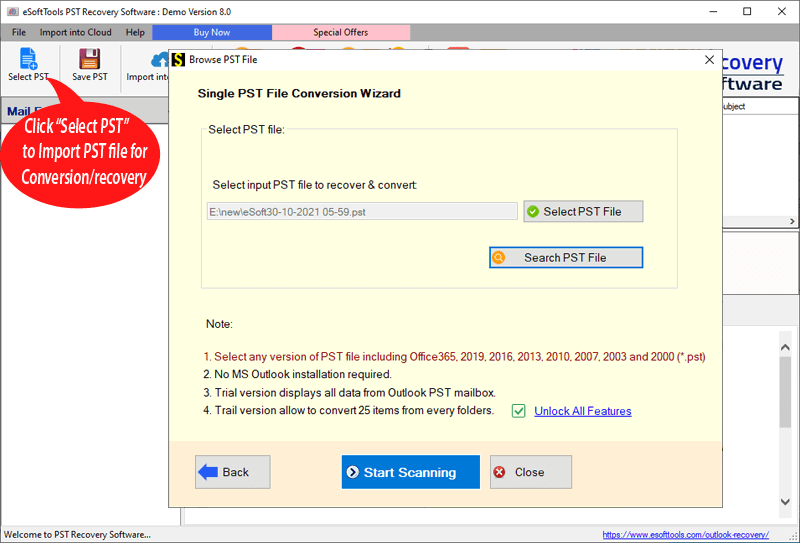
- Scan the PST files to extract all internal mail folders and items.

- View Outlook mailbox items and pick the folders you need from the PST file.
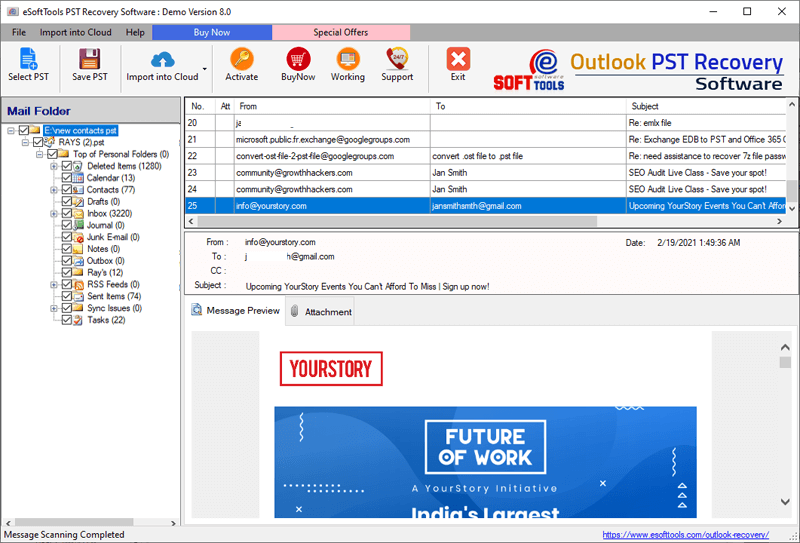
- Press the Migrate PST to Office365 button from the menu bar.
- Enter the email address of your Office365 account and apply other required settings: –
- Import Options – Choose any of these options to save the PST file data to your Office365 account.
- Export to Primary Mailbox: Transfer Outlook items from PST files to the Office365 account’s primary mailbox. (Within the same folder)
- Enter the folder name for migration: Create a new folder with a custom name in your Office365 account to securely store all exported PST file data.
- Email Filtering: Select the date of the emails you want to export from the PST file.
- Create Log File: Generate a log file containing all migration-related details and save it to the specified location.
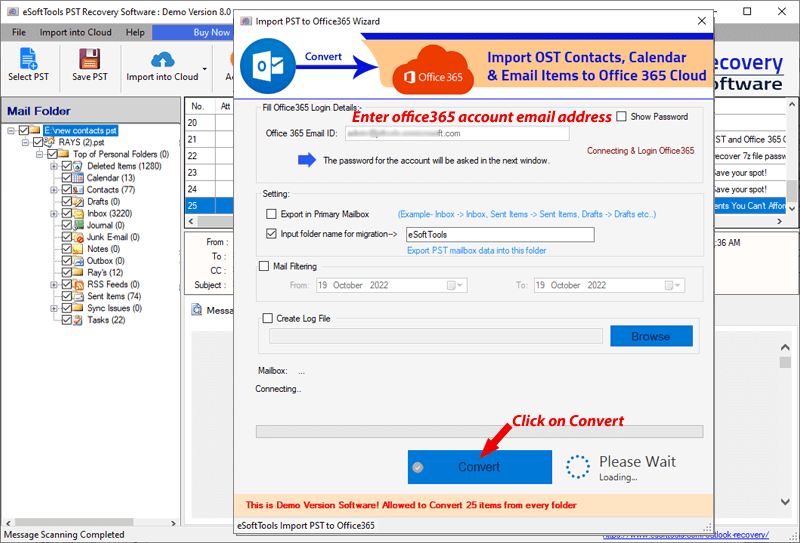
- Click the Convert button, sign in with an Office365 account, and start the migration.
Conclusion
The method above allows users to quickly Upload/ Import PST to Office 365 mailbox. Use the PST to Office 365 converter to easily transfer PST file data to an Office 365 mailbox. Plus, try the demo version to migrate 25 items from a PST file for free.


No Comments yet!