Are you looking to import EML files to Thunderbird? If yes, then you are on the right page. In this blog, we have written an automated method to import EML to Thunderbird.
EML files store a single email message with attachments at a time. If users want to handle large amounts of emails with attachments then they need an email client that can handle them.
Thunderbird is a free open-source platform that can handle a large number of emails. You can use various add-ons to add advanced features to Thunderbird.
Read also
Reasons to import EML to Thunderbird
- Thunderbird is an open-source platform that individuals and business organisations can use to enhance their work productivity.
- Thunderbird comes with advanced features and offers features like Junk filtering, Message management, add-ons, and themes.
Smart Solution to import EML to Thunderbird
The smart solution to import EML to Thunderbird is to use eSoftTools EML to Thunderbird converter software. With a few clicks, you can easily convert EML files to Thunderbird without data loss or modification. Moreover, with the help of this software, you can convert EML files to MBOX and import EML files to cloud-based applications like Office 365 and IMAP-based email applications.
Key features
- Directly import EML/EMLX emails and attachments to Thunderbird.
- Easily add an unlimited number of EML files to the software.
- Add EML files with two options- Select EML files or Select EML folders.
- Convert the EML folder to MBOX or directly import the EML folder to the Thunderbird configured profile.
- Convert EML with complete email data attachments, embedded images, styles, font sizes, etc.
- Filter emails based on Date, sender and recipient email addresses.
- Compatible to run on all editions of the Windows operating system like Windows 11, 8.1, 8, 7 and below editions.
Step-by-step approach to convert EML to Thunderbird
Download and install eSoftTools EML to Thunderbird converter software in your system.
Insert EML files with the Select EML file/folders options of file adding.

Load the EML files/folders into the software and preview them in the preview panel.

Select the files/folders to be converted and click on the Convert EML button on the above menu bar.
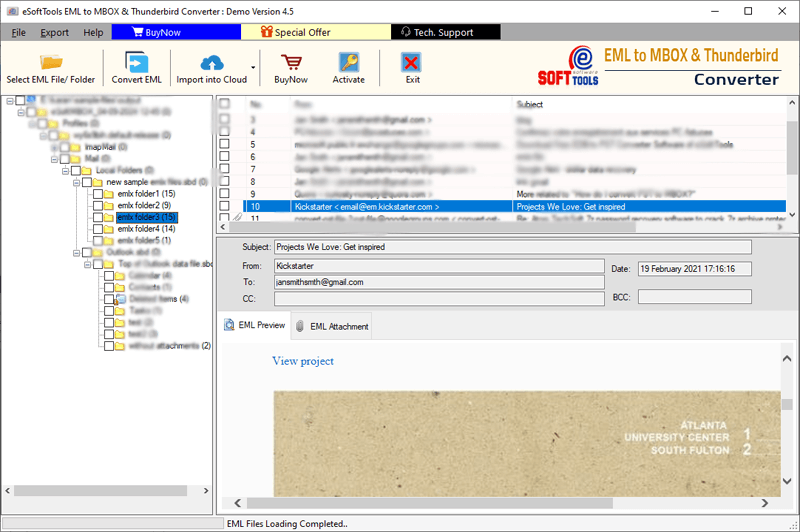
Choose any one of the options- Export to MBOX or Export to Thunderbird.

Apply the email filter and other required settings in the conversion window.

At last, click Convert and start the conversion of EML to Thunderbird.
Conclusion
In this blog, we have explained an automated method to Import EML to Thunderbird. The above method is a professional method used by IT industry experts. In the demo version, you can import 25 EML files from each folder to Thunderbird email account and if you satisfied with the result, you can purchase the software.


No Comments yet!