Users are migrating to Gmail to access their emails easily and anywhere with the help of the internet. So, users are looking for a method to import EML files to Gmail for easy access anywhere and anytime. There is no direct manual solution available; therefore, in this blog, we have written an automated method to convert EML files to Gmail accounts.
Overview
With the rise of cloud-based technology, many users are using these services because they can be accessed anywhere and anytime. So, more and more users are looking to migrate their EML emails from email clients to Gmail, as it is a cloud-based technology.
To help those users, we have written this blog and explained an automated method that allows you to easily migrate EML files to your Gmail account directly.
Smart and automated solution to import EML files to Gmail Account directly
The smart and automated solution to import EML files to Gmail is to use eSoftTools EML converter software. With a few clicks, you can easily migrate EML files to Gmail Account without any data loss. Moreover, during migration, it maintains data formatting and meta properties(To, cc, bcc, Subject, From, etc). Additionally, it has a user-friendly interface from which you can easily navigate the whole process of migration.
Also Read: How to Batch Convert EML to TXT Files?
Key features
- Convert both EML and EMLX files with attachments to other file formats.
- Allows to add multiple EML folders in the software.
- Convert EML files into another file format like MSG, MBOX, NSF, HTML, vCard, ICS, etc.
- Preview of EML files/folders before conversion in the preview panel.
- Enables loading of EML files from different locations of the user system and conversion in bulk.
- Maintains the folder hierarchy and data formatting while converting.
- Software preserves email formatting and maintains email meta properties (To, cc, bcc, subject, Date & Time) during conversion.
- Can migrate EML files to cloud-based applications like Office 365, Gmail, Yahoo Mail, Outlook.com and IMAP.
- Compatible with all editions of Windows Operating System such as Windows 11, 10, 8.1, 8, 7 & below versions
Step-by-step approach to import EML files to Gmail Account directly
- Download and install eSoftTools EML converter suite software on your system.
- Click on Select EML folder (To choose multiple EML folders) or EML files (To choose EML files) and click the Next

- button to add files and folders in the software and start scanning.
- In the preview panel, you can view EML folders and select the EML files to be migrated to your Gmail account.
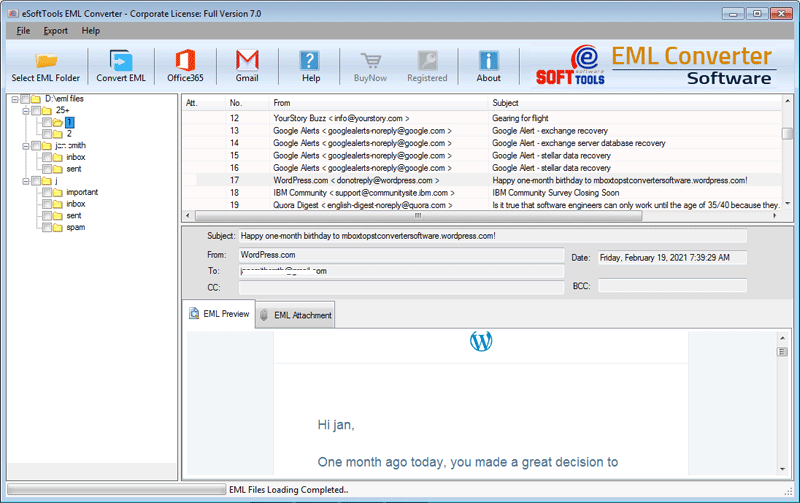
- On the above menu bar, click on Import to Cloud and choose Import to Gmail from the list of options.
- Enter your Gmail account credentials, such as your Email address and Google App password.
- Apply the mail filtering if you want to filter emails according to the Date Range (From and To).

- Click the convert button and start the migration process from EML to Gmail.
Conclusion
In this blog, we have explained an automated method to import EML files to Gmail. The software explained above is professional and used by working professionals for switching between email clients and migrating their email files to cloud-based applications. There are manual methods also available, but they are not reliable and require technical expertise.


No Comments yet!