.Are you looking to convert OST to MBOX format but you are not getting the way? If yes, then read this blog where we discuss manual and automated methods to convert OST files to MBOX files.
Overview
OST (Offline Storage Table) are the file used to store data offline. OST files show the Outlook data, such as emails, contacts, calendars, notes, tasks, etc., to the user when the local computer is not connected to the internet. When the local computer is connected to the internet, OST files synchronise with the Exchange server and get updated.
MBOX (Mailbox files) files are supported by various email clients such as Apple Mail, Mozilla Thunderbird, Eudora, etc. In MBOX files, emails are stored one after the other in a concatenated way. The emails are encoded in an ASCII format, and their attachments are encoded in other formats.
Why need to convert OST to MBOX?
- Sensitive to corruption- OST files are more sensitive to corruption. When the connection with the Exchange server is disconnected due to server crashes and maintenance issues, the OST file becomes corrupted.
- Compatibility Issue- OST files are not compatible with other email clients such as Apple Mail, Eudora, Mozilla Thunderbird, etc. OST files are only compatible with Outlook, and MBOX files are easily compatible with other email clients.
Automated Method to Convert OST File to MBOX Format
In the automated method, we will use third-party software, SysInspire OST to PST Converter Software. You can load single and multiple OST files in the software at a time, and it will create a single MBOX file.
Best and Attractive features of the software
- Preserves the structure of OST files such as emails, contacts, calendars, notes, tasks, etc.
- No Outlook installation is required during the conversion process.
- Provides a preview of the inner contents of the OST file in the preview panel of this software, and you can select from the files and folders of the OST file to convert into an MBOX file.
- Have the option of filtering emails, and you can filter emails according to date only you have to give the starting date and ending date.
- The graphical interface of the software is so easy to use that non-technical people can use it easily.
How to convert OST to MBOX ?
- Launch the software into your computer and press the “Select OST” button
- Add OST files from local drives and load them in the OST Converter.
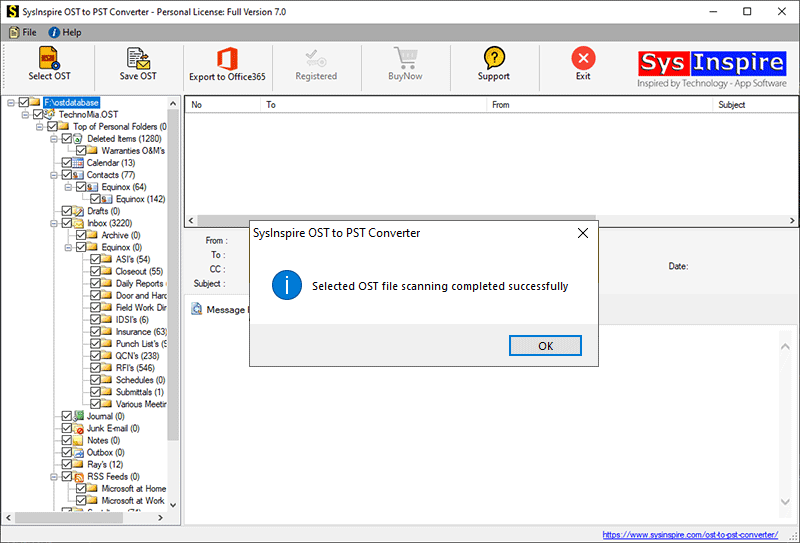
- In the side panel, you can preview imported OST files and folders and select the necessary mailbox folders from the OST files for exporting them.

- Press the ‘Save OST’ button and select the ‘Export to MBOX’ radio button from the OST conversion options.
- Browse the location where you want to save the PST file to your computer.
- Choose the ‘Mail Filter’ option if you want to filter email (based on date).

- Click on the ‘Convert’ button and begin the process of OST to MBOX conversion.
Conclusion
Now you know the reasons and automated methods to convert OST to MBOX. There are manual methods available, but they are complex and time-consuming. The automated method is easier and faster than the manual method.


No Comments yet!