Are you a Mac OS user who uses Outlook OLM files to manage email data on Mac OS, and wants to convert OLM files to MBOX format to use in Apple Mail? If yes, then you landed on the right page. In this blog, we have written an automated method to convert OLM files to MBOX without any hassle.
Overview
OLM (Outlook for Mac) file is a file format used by Outlook for Mac to store emails, contacts, calendars, tasks, notes, etc. These files are only open and viewable in Outlook for Mac. If you want to migrate from the Outlook for Mac email client to another email client, then you need to convert OLM files to another file format.
MBOX file format stores all emails in one file in a concatenated way. This file format is supported by many email clients like Thunderbird, Apple Mail, Gmail, etc. If you want to migrate from one email client to another email client then you don’t need to convert file format, as it is more versatile.
Reasons to convert OLM to MBOX
- MBOX files are used in various email clients, so after converting OLM files to MBOX, you can use OLM files in different email clients.
- Converting OLM files to MBOX format ensures data preservation during transition and prevents any data loss.
- MBOX files are easy to handle.
- MBOX files’ universal compatibility ensures no need for converting OLM files to other file formats in case of switching between email clients.
Also Read: How to convert OLM to PST in Windows step by step?
Automated method to convert OLM to MBOX
With eSoftTools OLM Converter software, you can convert OLM files to MBOX format on a Windows computer. It can easily convert all emails, contacts, calendar, tasks, and notes in OLM file format to MBOX files.
Key features
- Converts OLM files to MBOX and other file formats like PST, EML, EMLX, MSG, HTML, MHTML, vCard (for contacts) and ICS (for calendars) in bulk.
- Provides a preview of OLM files & folders in the preview panel before conversion.
- Can convert OLM files to TGZ files for the Zimbra email client.
- Import and migrate OLM files to Office 365 and Outlook.com with a few clicks.
- Preserves OLM folders’ structure, formatting and email meta-properties during conversion.
- Filter emails according to Date by specifying Date Range( From and To).
- Have a naming convention feature that names emails with different names based on Subject, Date and From.
- Save MBOX and convert files at your desired location on your Windows system.
- Compatible with all editions of the Windows Operating system, like Windows 11, 10, 8.1, 8, 7, XP & below versions.
Steps to convert OLM to MBOX
- Download and install eSoftTools OLM Converter software on your Windows System.
- Launch the software and click the Select OLM button on the above menu bar.
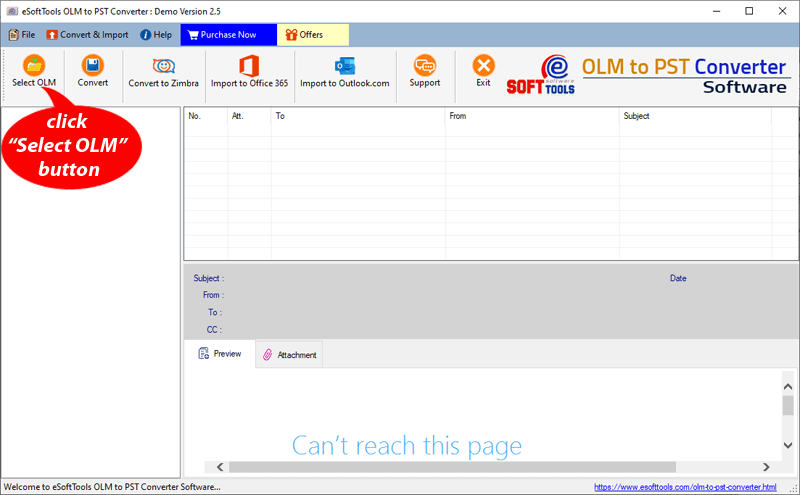
- A new window will open, and select the OLM conversion mode: Single OLM file conversion and Bulk OLM file conversion.
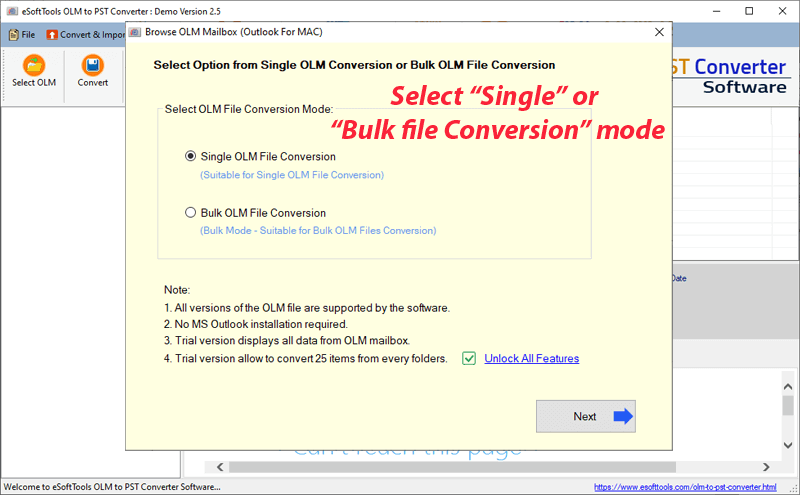
- Click the Next button and add single or multiple OLM files into the software.
- Click the start scanning button, and OLM files and folders will be loaded into the software.
- Preview of OLM files & folders will be displayed in the preview panel.
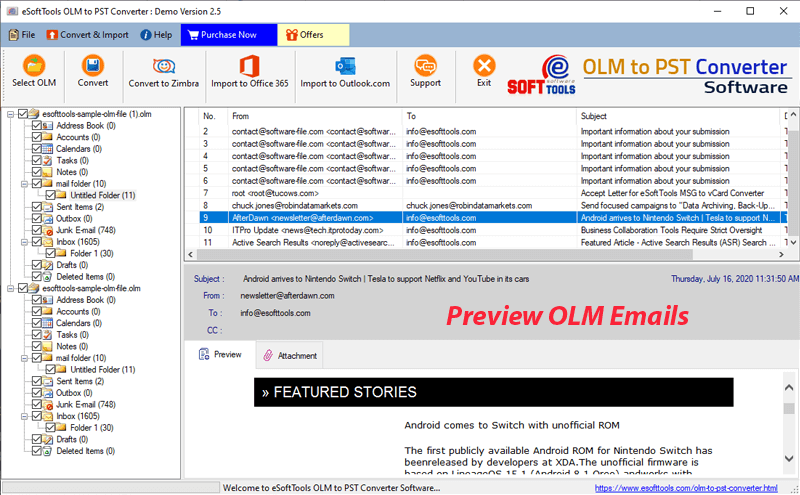
- Choose the needed OLM files and folders and press the convert button on the above menu bar.
- Select the conversion option as MBOX by selecting the radio button.
- Apply Mail filter and naming convention feature according to your requirement.
- Browse the saving location where you want to save the MBOX file.
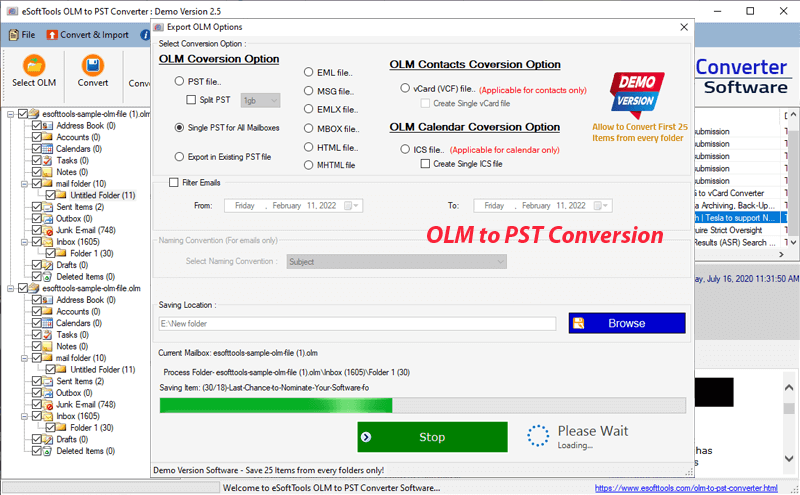
- Finally, press the convert button and start converting OLM files to the MBOX file format.
Conclusion
In this blog, we have explained the reasons and an automated method to convert OLM files to the MBOX file format. There are manual methods available, but they have limitations and require effort. However, with the eSoftTools OLM Converter software, you can easily convert OLM files to MBOX format without any extra effort.


No Comments yet!