PDF is the most popular file format nowadays for sharing documents and backing up data. Are you one of those who want to convert JPG to PDF in bulk on Windows but don’t know how to do it? If yes, then you are on the right page. In this blog, we have explained an automated method that will convert JPG to PDF in bulk on Windows.
JPG Vs PDF
JPG, known as the Joint Photographic Experts Group, is a file format that stores images that are widely used on the internet or in digital photography.
PDF, also known as Portable Document Format, is a file format that is used to share documents irrespective of the software, hardware and operating system used.
Why convert JPG to PDF?
- Security: JPGs are not a safe file format; they can be edited by image editing software, whereas PDF files are safe and protected by providing a password to the PDF files.
- Backup purposes: PDF files can be used for backup purposes, and data in these files remains safe for a long time, and these files conserve data formatting and layout.
- Multi-page creation: In PDF files, multiple JPEG files can be placed in one PDF file due to the creation of multiple pages.
- Professionalism: PDF files look professional and can be used in presenting work to the boss or providing a resume and academic details to HR in an interview.
- Easy sharing: PDF files can be opened in many applications and have a small size, so they can be used for sharing purposes.
Smart solution to convert JPG to PDF
With the eSoftTools Image to PDF converter software, users can Convert JPG to PDF files. This tool can convert other image files, such as PNG, GIF, TIFF, BMP, and EMF, to PDF files. The user can convert bulk JPEG images to PDF files offline with this tool without requiring an online converter.
Benefits and features of the Image to PDF converter software
- Professional method of converting image files like JPG/PNG/GIF/TIFF/BMP/EMF to PDF files.
- Have two options for adding image files to the computer: Select Image File or Select Image Folder.
- Converts images to PDF files with two options:
- Create a single PDF: Create a single PDF for all selected images.
- Create an individual PDF file: Create an individual PDF file for every single image.
- Convert image files to PDF without losing image quality and alterations in the images.
- A simple and easy-to-use graphical interface can be used by anyone.
- Compatible with all editions of the Windows Operating System, like Windows 11, 10, 8.1, 8, 7 & below editions.
How to convert JPG to PDF?
Download, install, and launch the eSoftTools Image to PDF converter software on your Windows system.

Choose one option from the two file adding options:
- Select Image File: Select this option to add a single JPG file.
- Select Image Folder: Select this option to add a JPG folder containing JPG images.

Click the Next button, and the images will be imported into the software.

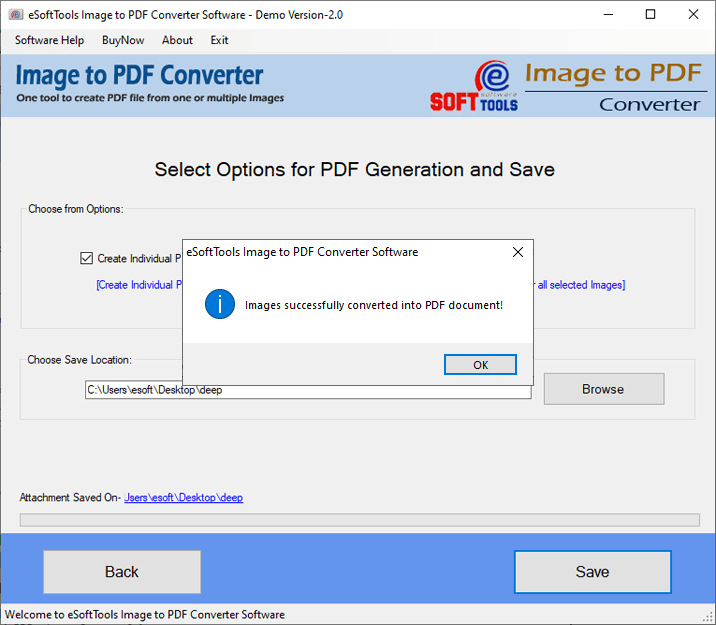
Click the Next button and choose one option for the Image to PDF conversion:
- Create a single PDF: Create a single PDF for all selected images.
- Create an individual PDF file: Create an individual PDF file for every single image.

Browse the saving location where you want to save PDF files on your computer.

Click the Save button, and the JPG files are converted to PDF files.
FAQ
Can I add any number of images to convert to PDF files without any size restriction?
Yes, in the eSoftTools Image to PDF converter software, you can add any number of image files without any size restriction and convert them to PDF files.
Can I combine multiple image files into one PDF file?
Yes, by choosing Create a single PDF file option, you can create a single PDF for all images in any format, JPG/PNG/GIF/TIFF/BMP/EMF.
Can I open the eSoftTools Image to PDF converter software on any version of the Windows operating system?
Yes, eSoftTools Image to PDF converter software can open in all versions of the Windows Operating System, like Windows 11, 10, 8.1, 8, 7, Vista, XP & below versions.
Can I save a PDF file to my desired location on a Windows system?
Yes, user can browse any desired location on their system to save PDF files while using the eSoftTools Image to PDF converter software.
Conclusion
In this blog, we have explained an automated method to create PDF files from images in JPG, PNG, GIF, TIFF, BMP, and EMF formats. There are online solutions also available, but they are not suitable for bulk images. In the eSoftTools Image to PDF converter software, you can add bulk images without any size restriction and convert them to PDF files. The company has provided a free demo version where unlimited images are converted to PDF files, but they contain the eSoftTools demo watermark.


No Comments yet!