Are you getting an error message that the PST file is too large while accessing it? However, PST files become too large after years of using Microsoft Outlook; they become oversized and start giving complications. In this blog, you will learn methods to compress or compact an PST file.
User Query: I have been using Microsoft Outlook for the last 10 years. Yesterday, when I was trying to open PST files on another computer, I was getting an error message that “Outlook data file is too large to open”. Is there any way to open a PST file, as I have important emails in the PST file?
PST files are used to store all Outlook data, like emails, contacts, calendars, tasks, notes, etc. and can be opened without an internet connection.
Why compress or Compact the Outlook PST file?
- As Outlook performance slows down due to large PST files.
- It is difficult to back up large PST files.
- Outlook will take a longer time to access, send and receive emails.
- The chances of corruption of PST files increase with their oversized issues.
Manual method using the built-in compact feature in Microsoft Outlook
- Open the Microsoft Outlook application and click the File tab.
- Go to File >> Account Settings and click the Account Settings option.
- A dialogue box will open and select the Data Files tab.
- Click the settings tab, and a new dialogue box will open.
- Click the Compact Now button, and compacting will start.
Smart Solution to compress or compact the Outlook PST file
The smart and efficient solution to compress or compact the Outlook PST/OST and NST files is eSoftTools Outlook PST Compress Software. The oversized Outlook data file is compressed or compacted by removing/compressing Outlook attachments.
How to compress or compact an Outlook PST file
Download, install and launch eSoftTools Outlook PST compress or compact software on your Windows system.
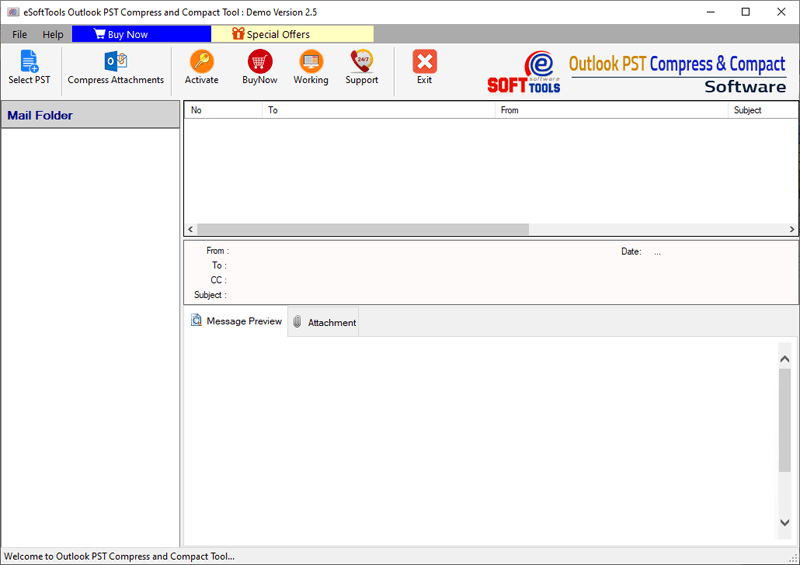
Click the Select PST button on the above menu bar to open the conversion mode window.

Choose the conversion mode:
- Single PST/OST file conversion: This conversion mode is suitable for adding a single Outlook PST or OST file.
- Bulk PST/OST file conversion: This conversion mode is suitable for adding multiple Outlook PST files or OST files.
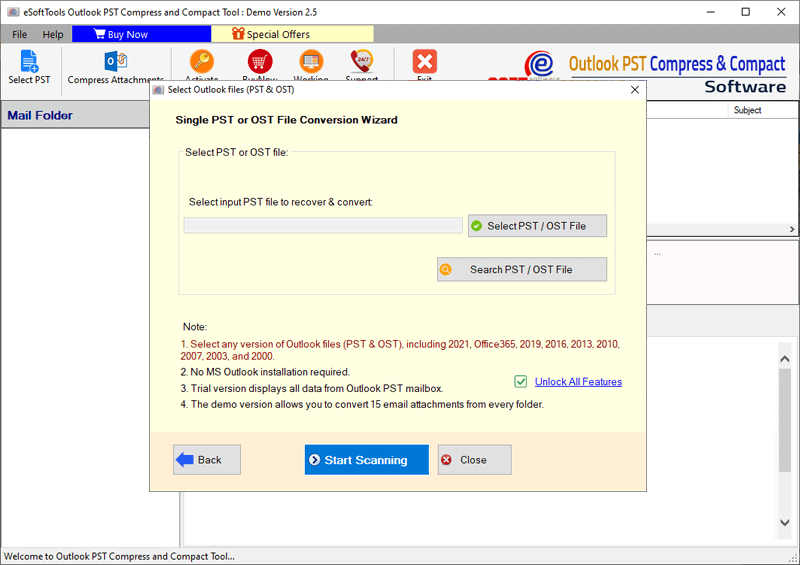
Click the Next button and all files & folders of the PST/OST files loaded into the software.

Preview all the files & folders of the PST/OST files and select them according to your needs.
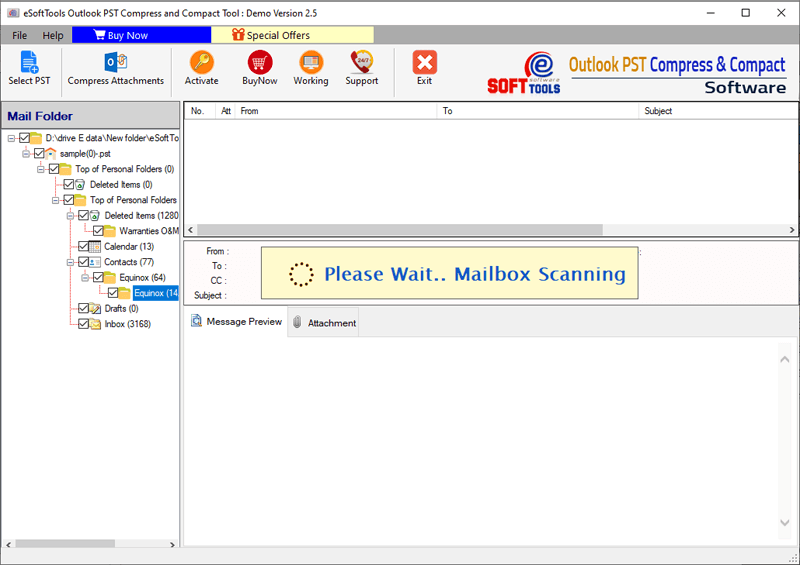
Click the Compress Attachments button, and a new conversion window will open.

Select the attachment extraction option: Remove attachment in new PST file, Compress attachment in new PST file, Remove attachments from new PST and save attachments and Remove attachments from new PST and compress and save attachments.
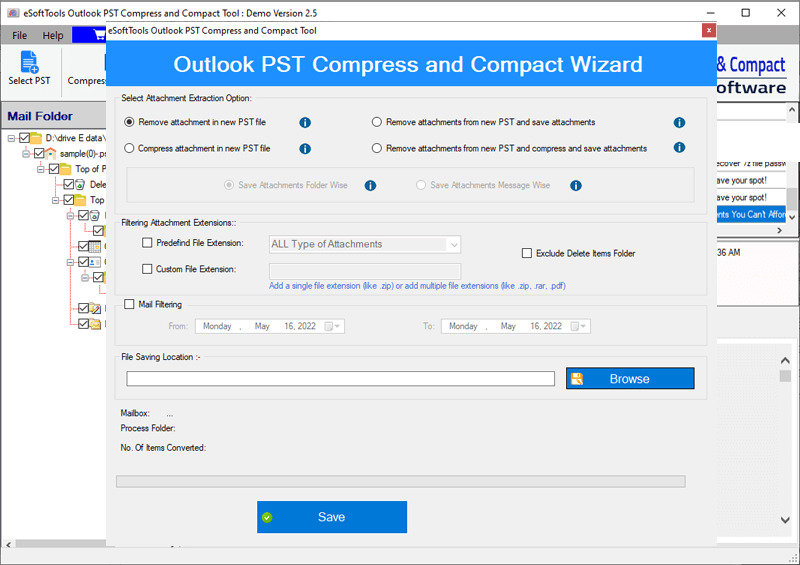
Apply Filtering Attachment Extensions and Mail filtering option according to your requirements.

Browse the file saving location on your Windows system.
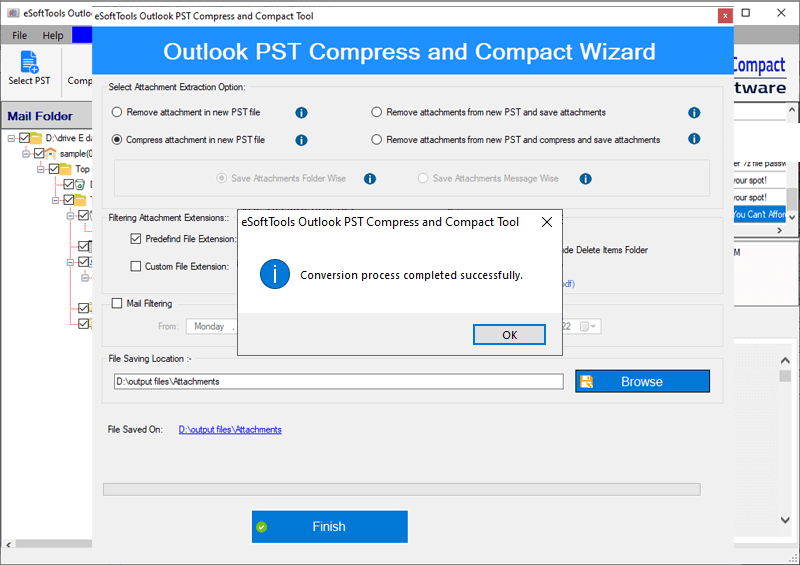
Click the Save button, and compression or compacting of PST/OST/NST files will start.
Exclusive feature of Outlook PST compress or compact software
- Remove/Compress attachments from Outlook PST/OST/NST files efficiently.
- Compresses and reduces the oversized Outlook PST/OST/NST files.
- Can compress multiple Outlook PST/OST/NST files at a single time.
- Selected PST/OST/NST files & folders are compressed or have attachments removed.
- Provides four different options for compressing/removing attachments from Outlook PST/OST/NST files.
- Have a Mail filter feature that filters emails according to Date, and attachments are removed from them.
- Save the resultant compressed file to your desired file location.
- Comfortably runs on all editions of the Windows operating system, like Windows 11, 10, 8.1, 8, 7 & below editions.
FAQ
Q. Can I compress & compact corrupted Outlook OST/PST files?
Yes, eSoftTools Outlook PST compress & compact software loads all corrupted or encrypted Outlook OST/PST files and compresses them by removing/compressing attachments.
Q. Can I add multiple Outlook OST/PST files into the software?
Yes, in the Bulk PST/OST file conversion mode user can add multiple Outlook PST/OST files into the software.
Q. Can a user without technical knowledge compress & compact Outlook PST files?
Yes, an easy and simple graphical interface of the software helps by technical and non-technical people to use it easily without any hassle.
Q. Can I use this software on Windows 7?
Yes, this software can easily install and run on all editions of the Windows Operating System, like Windows 11, 10, 8.1, 8, 7 & below editions.
Q. Can I remove specific type attachments from all emails?
Yes, in the Filtering attachment extensions user can select any file extension attachment in the custom file extension option.
Conclusion
The user can compress & compact the PST files using eSoftTools Outlook PST Compress & Compact software. If your Outlook PST/OST/NST files get corrupted, then you cannot compact them with the manual method. To compress and compact Outlook PST/OST/NST files, users have to use a third-party application like eSoftTools Outlook PST Compress & Compact software. This software will save you the time and effort required in the manual method.


No Comments yet!