In this era of computers, users are looking for a way to export Outlook calendar to an ICS file. If you are also one of them, then you don’t need to worry. In this blog, we have explained an automated method on how to save Outlook Calendar to an ICS file.
Overview
ICS is an iCalendar file used to store calendar data like tasks, events, and appointments. Nowadays, various applications and devices use ICS files and share calendar information between them.
Reasons to save Outlook Calendar to ICS file
Compatibility: Multiple calendar applications like Google Calendar, Apple Calendar, Zoho Calendar, etc, support the ICS file format. This is a standard file format to store calendar tasks, events, and appointments.
Import Calendar data: Sometimes users want to import Outlook Calendar tasks, events, and appointments to other email client calendars, and the solution is to convert Outlook Calendar to an ICS file.
Cross-platform compatibility: ICS files can be used on different mediums and Operating Systems like Windows, MAC, Android, and iOS.
Sharing Needs: Sometimes a user needs to share Outlook calendar events with friends and colleagues, which can be done with ICS files.
Automated method to save Outlook Calendar to ICS file
With eSoftTools Outlook PST Recovery Software, you can easily save Outlook Calendar to an ICS (.ics) file. Moreover, this tool allows the conversion of PST files to various other file formats like EML, EMLX, MSG, MBOX, NSF, HTML, Zimbra(.tgz), etc, and allows migration of PST files to different cloud-based applications like Gmail, Yahoo Mail, Office 365, Outlook.com, and IMAP servers. This tool comes with a free demo version and allows you to check how the software works.
Also Read:- How to extract contacts from a PST file without Outlook?
Key features
- Save Outlook calendar to ICS file with just a few easy steps.
- Preserves email formatting and structuring during conversion and migration.
- Provides a preview of PST emails, contacts, calendars, tasks, notes, etc. inside the software.
- Migrate PST file data to web-based email clients such as Gmail, Yahoo Mail, Office 365, and Outlook.com account.
- Allows the splitting of large PST files into smaller PST files with the split feature.
- Enables working with all Outlook editions up to 2019 (32/64 bit).
- Compatible with all editions of the Windows Operating System, such as Windows 11, 10, 9, 8.1, 8, 7, Vista, XP, and older versions.
- Repair corrupt PST files and recover data items such as emails, calendars, and contacts.
- This tool is compatible with all editions of Outlook 2021, 2019, 2016, 2013, 2010 & below versions.
How to save Outlook calendar to ICS file?
- Download and launch eSoftTools Outlook PST recovery software on your system.
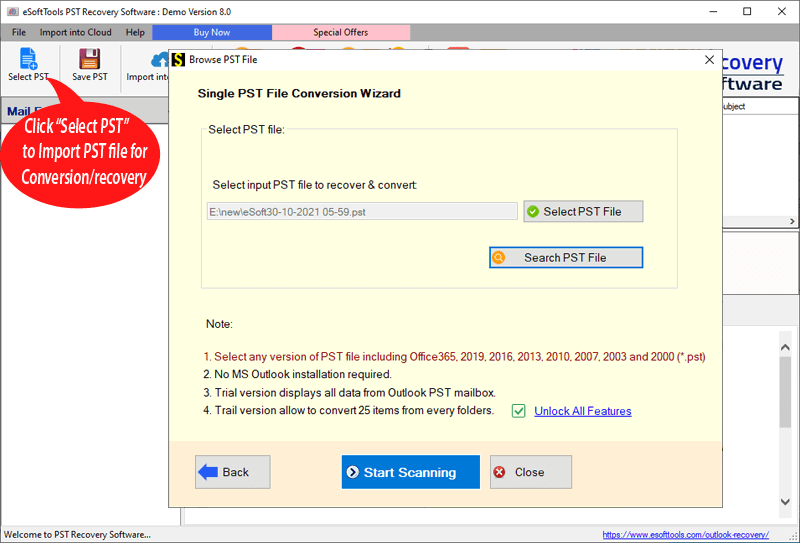
- Click on the Select PST button from the menu bar.

- Now choose the PST conversion mode.
- Single PST file conversion– You can load a single PST file in the software in this conversion mode.
- Bulk PST file conversion– You can load multiple PST files in the software in this conversion mode.
- Select the file and click the Next button to start the scanning process.
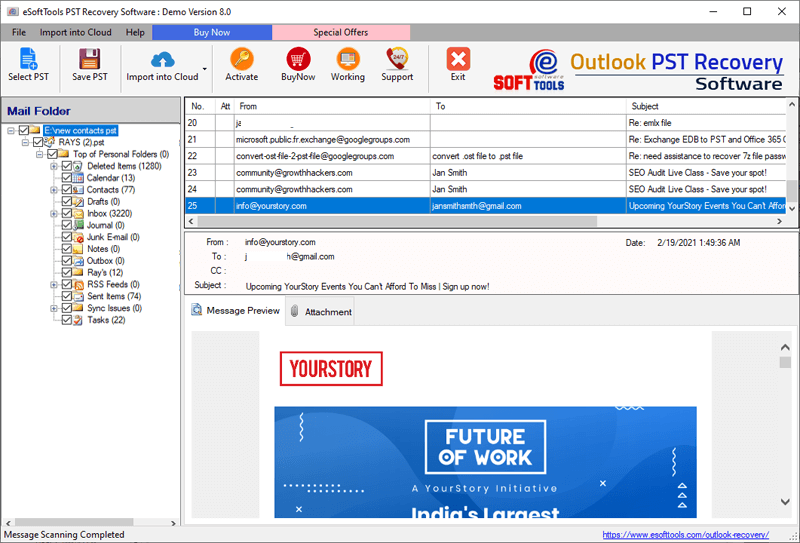
- Get the preview of files/folders of the PST file, and select the PST contacts files and folders that you want to convert.

- Click on the Save PST button on the above menu bar, and the Outlook PST conversion window will open.
- Select the conversion option Export to ICS(.ics) from the list of options.
- You can apply the mail filtering, naming convention, and saving location feature.
- Click the Convert button to start the conversion of the PST contacts to ICS(.ics).

Conclusion
Now, after knowing the automated method, you can easily convert Outlook calendars to ICS files. There are manual methods available, but they are complex and have limitations. Use an automated method to easily and with less effort save Outlook calendar to ICS files.


No Comments yet!