Are you in a need to transfer Emails From Lotus Notes to Outlook 2016 and not getting the way to transfer files. If your answer is yes then read this blog we have mentioned manual and automated methods to transfer files.
Overview
Lotus Notes now also known as HCL notes are NSF(Notes Storage Facility) files. It stores data such as emails, contacts, calendars, tasks, notes, etc.
Outlook’s easy to use interface and its latest security features make users switch Lotus Notes emails to it.
Reasons to transfer emails from Lotus Notes to Outlook 2016?
- Outlook’s easy to use interface makes it more interesting.
- Outlook 2016 has more advanced security features than Lotus Notes or HCL Notes.
- You can work offline in MS Outlook than Lotus Notes.
- Data management feature is better in MS Outlook than in Lotus Notes.
- MS Outlook has more storage capacity and handles data more efficiently than Lotus Notes.
- MS Outlook comes with the MS office suite.
Methods to transfer emails From Lotus Notes to Outlook 2016
- Manual Method
- Automated Method
Manual Method to transfer emails from Lotus Notes to Outlook 2016
In the Manual method, firstly NSF files are converted to CSV files and then CSV files are imported into Outlook and saved as PST files.
Export the NSF file to a CSV file
- Launch the IBM Notes or HCL Notes on your system.
- Open the NSF file in the software.
- Go to the ‘File’ Menu.
- Click on the ‘Export’ option.
- Browse the location on your system where you want to save the CSV file.
- Choose the Comma Separated Values as a Save as type.
- Give a name to the file.
- Choose the files that you want to export.
- After choosing the options, click the ‘Ok’ button.
Import CSV files into Outlook 2016
- Launch Outlook software in your system.
- Go to the ‘File menu’ and choose the ‘Open & Export’ option.
- After that, choose the ‘Import & Export’ option.
- Select the option ‘Import from another program’ and click the Next button.
- Select the option ‘Comma Separated Value’ and click the Next button.
- Browse the location of the CSV file and Select the CSV file.
- Choose the option ‘Replace duplicates with items imported’ and click the Next button.
- Choose the destination where you want to save the file and click Next.
- Once the process is complete, click the Finish button.
Automated Method to transfer emails from Lotus Notes to Outlook 2016
Use the eSoftTools NSF to PST Converter software to transfer emails from Lotus Notes to Outlook 2016. With a few clicks you can transfer Lotus Notes emails, contacts, calendars, notes, tasks and other data items to Outlook 2016 with this tool. Moreover, you can transfer emails from Lotus Notes (now HCL Notes) to cloud-based applications like Gmail, Yahoo Mail and Office 365/Microsoft 365.
Key features
- Convert single and multiple NSF files to PST files at a time in this software.
- In the preview panel, you can see the inner contents of the NSF file and you have the option to select the files which you want to convert to PST and other file formats.
- Provides the feature of email filter by which you can filter emails according to Date Range only you have to mention the starting date and ending date.
- Easy to use graphical interface that can be used by technical and non-technical people easily.
Steps to convert NSF to PST in eSoftTools software
- Download and install eSoftTools NSF to PST Converter Software.
- Click the Select NSF button to select NSF files from the system.
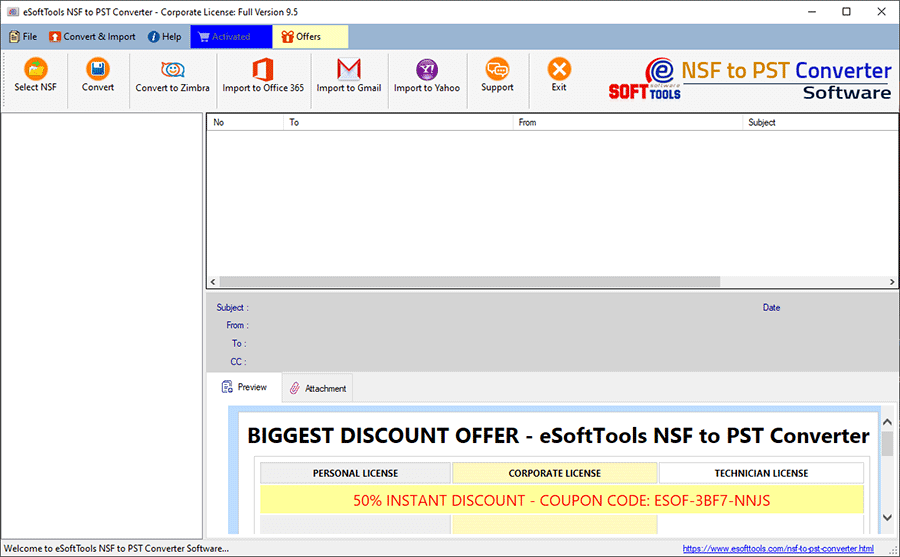
- NSF conversion wizard will be open
- Single NSF file conversion: To select a single NSF file from the system for conversion.
- Bulk NSF file conversion: To select multiple NSF files from the system for conversion.

- Click the Start Scanning button to scan NSF files.
- See the Preview of NSF files contents such as contacts, calendars, tasks, notes, etc.

- Choose the PST files for conversion from the dropdown menu.
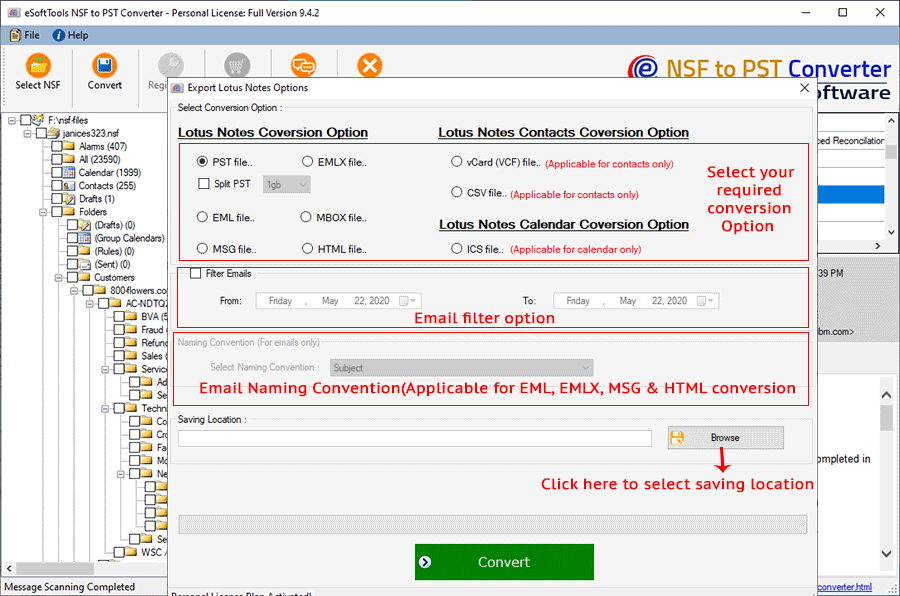
- Browse the location where you want to save the PST file.
- Click the Convert button and Start conversion.
Conclusion
Now you know both Manual and Automated methods and you can conclude that manual methods are complex and time-consuming. There are limitations in the manual method that they are not 100% accurate and there are chances of data loss in this method. The automated method is easy to use and it is 100% accurate and chances of data loss in an automated method is very low.


No Comments yet!