Transferring contacts from Lotus Notes to Office 365/Outlook 365 can be challenging. However, with the right guidance and tools, the process can be relatively easy. In this blog post, we’ll walk you through the easy steps to export contacts from Lotus Notes to Outlook 365.
Overview
Lotus Notes (now known as HCL Notes) and Office 365 are two different email and collaboration platforms. Both of these applications offer email sharing, but are built by different vendors and offer different features.
Users can share, manage, and access email accounts from their desktop using HCL/Lotus Notes. Lotus Notes also supports contact and calendar creation and management. Meanwhile, Office 365 lets users do all this email profile data management from the web.
The cloud-based architecture of Office 365 allows users to access their email profile data as well as contacts and other information from anywhere with an internet connection.
This is particularly beneficial for remote and mobile employees who require access to their information on the go. Consequently, the majority of Lotus Notes users seek dependable ways to migrate their data, including contacts, from Lotus Notes to Office 365.
Also Read:- How to Import Lotus Notes NSF files to Yahoo Mail?
Instant Solution to export contacts from Lotus Notes to Outlook 365
To quickly transfer Lotus Notes contacts to an Office 365 account, the best solution for users is the eSoftTools Lotus Notes to Office 365 Migration Tool. It’s automated software that simplifies the migration process. This tool is primarily designed for email migration, but it can also handle contacts. Its interface is easy to use, and it allows you to migrate contacts from multiple NSF files in a single process. To make Lotus Notes contact migration even more effective, it offers several advanced features such as contact preview, folder selection, folder input, and more.
Key Features of Lotus Notes to Office 365 migration software-
- The primary function of this tool is to accurately transfer Lotus Notes mailbox data, including contacts from NSF database files, to Office 365 accounts.
- This tool also allows you to migrate contacts from multiple NSF files at once. A large number of contacts can be easily exported from different NSF files at once, without the risk of data loss.
- This tool allows users to view all Lotus Notes mailbox items, including contacts, along with all related information, before migration.
- Its user-friendly interface makes it easy for users to configure migration settings and start the migration process.
- This software is capable of migrating data from NSF files of all versions of HCL/IBM/Lotus Notes – 10.0.1, 9.0.1, 9.0, 8.5, 8.0.2, 7.0, 6.5, 6.0, and below.
- A free trial version of the software is available that allows you to test all its functionalities before making a purchase.
How to export contacts from Lotus Notes to Outlook 365?
- Download and run the Lotus Notes to Office365 migration tool on your PC.

- Click on the ‘Select NSF’ button located in the top menu bar of the software screen.
- Next, select the Single NSF File Conversion or Bulk NSF File Conversion option, then click Next.
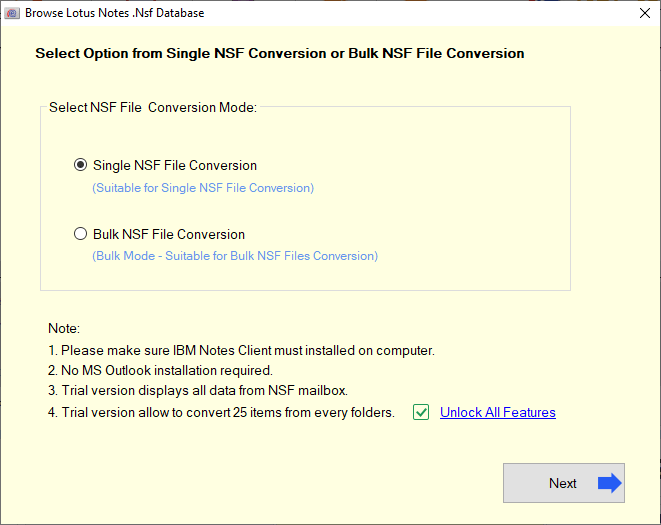
- Add notes and NSF files and click the ‘Start Scanning’ button. (The user has the option to load one or more NSF files simultaneously.)

- View internal folders and items of Lotus Notes NSF files, including contact items.

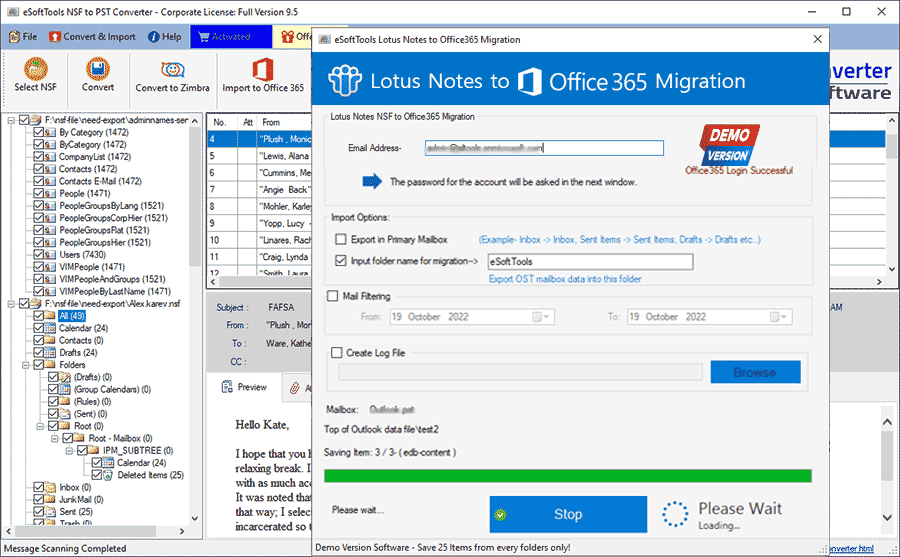
- Select the required contacts, emails, or calendar folders and click the “Import to Office 365” button.

- Enter the email address of your Outlook/Office 365 account and apply other required settings.
- Click the Connect & Import button, log in with your Office365 account, and activate the migration process.

- Start the migration process and import all your Lotus Notes contacts into your Outlook 365 account instantly.
Conclusion
The process of export contacts from Lotus Notes to Outlook 365 can feel difficult; however, the steps provided here make it straightforward. The eSoftTools migration tool facilitates a smooth transition, safeguarding all your vital contact data.


No Comments yet!