Are you looking to migrate from Lotus Notes email client to MS Outlook email client but do not know how to migrate? then read this blog you will know methods to transfer Lotus Notes files to MS Outlook files.
Lotus Notes email client that uses NSF (Notes Storage Facility) files. These files are used to store data such as emails, calendars, contacts, tasks, notes and journals, etc.
MS Outlook is also an email client that uses OST(Offline Storage Table) and PST(Personal Storage Table) files. These files are also used to store data such as emails, calendars, contacts, tasks, notes and journals, etc.
Also Read:- How to convert Lotus Notes names.nsf to Outlook PST?
Why user transfer from Lotus Notes email client to Outlook email client
- User-friendly Interface- MS Outlook has a user friendly interface. The graphical interface of MS Outlook is easy to use.
- Better Security feature- MS Outlook has got a better security feature than the Lotus Notes now known as HCL Notes.
- Perfect collaboration- MS Outlook has a better collaboration with other Microsoft softwares such as Microsoft Word and Microsoft Excel.
Methods to transfer Lotus Notes to Outlook
- Manual Method
- Automated Method
Manual Method
In the manual method we will first convert NSF files to CSV files and then import CSV file in Outlook and export as PST files.
First, convert the NSF file to CSV format.
- Download and install the IBM Lotus Notes application.
- Go to the ‘File’ option and after then to the ‘Export’ option.
- Browse the location of the NSF file which you want to open the IBM Lotus Notes.
- Give a Name to the file and save the file in the Save as type option as CSV format.
- Now click on the ‘Export’ option.
- The pop-up will appear on the screen according to file selection.
- Read the pop-up and select ‘OK’.
Now import the CSV file into MS Outlook.
- Open MS Outlook.
- Go to the ‘File’ option and then to ‘Import and Export’.
- Select the option ‘Import from another program or file’ and click Next.
- Select option ‘Comma separated Values (Windows)’.
- Browse the location where you want to save the file and click ‘Next’.
- Select one folder at one time and click ‘Next’.
- Check the option ‘import from CSV file’ to the selected folder and click ‘Finish’.
Automated Method
Consequently, in the automated method, we use the software eSoftTools NSF to PST converter software. Moreover, you can convert a single NSF mailbox and multiple mailboxes into a PST at a time. You can convert NSF files to PST other file formats also such as EML, EMLX, MBOX, HTML, ICS and vCard, etc. In the preview panel you can see the inner content of the NSF file and can select the files and folders which you want to convert into PST files. Additionally, you can export NSF file contacts to vCard and calendars to ICS format. It can work with NSF files of all editions of IBM Lotus such as 10.0.1, 9.0.1, 9.0, 8.5, 8.0.2, 7.0, 6.5, 6.0. In the demo version you can convert 25 files from each folder of NSF file to PST. In a few steps you can convert NSF files to PST.
- Download , install and launch eSoftTools NSF to PST Converter software in your system.
- Click the Select NSF button to select the NSF files in the software.
- Preview the NSF file contents such as email, contacts, calendars, Notes, tasks, etc. in the preview panel.
- Click the convert button and jump to the conversion wizard.
- Select the PST button from the conversion format and browse the saving location.
- Click the Convert button and start the conversion from NSF to PST.
- Once the conversion process is complete you can import the PST file in MS Outlook.
Conclusion
You can transfer NSF files to PST files manually but it is time-consuming and error prone process whereas you can transfer NSF files to PST files using third-party software such as eSoftTools NSF to PST converter software which is a easy and error free method.
Steps to Know How to Convert Lotus Notes to Outlook PST Easily
Step1: Download the Software

Step2: Select and upload the Lotus Notes NSF file

Step3: After selecting the NSF file, you will get a preview of the NSF file

Step4: Select the option to convert the Lotus Notes NSF file

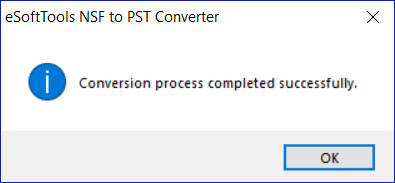
Step5: Now, the conversion process has been completed.


No Comments yet!