Many organizations choose to import Lotus Notes archives into Outlook when updating their email systems or moving to Microsoft 365. As a result, this process helps standardize communication platforms and improve long-term management. To support this, Regzion Software Pvt Ltd provides a dedicated tool to support this migration in a structured and reliable way.
Why move from Lotus Notes to Outlook
Organizations often migrate from Lotus Notes (HCL/IBM Notes) to Microsoft Outlook because Outlook integrates well with Microsoft 365 and offers a familiar interface for users. Outlook also benefits from broader third-party support and lower ongoing maintenance compared to Lotus Notes.
Lotus Notes stores mailbox data in NSF format, while Outlook uses PST or OST files. Because of this difference, Outlook cannot open NSF files directly. Therefore, a conversion tool is required to move mailbox data without affecting folders, emails, or other items.
Challenges in Migrating from Lotus Notes to Outlook
In contrast, manual migration methods are usually time-consuming and involve multiple steps. These approaches often require exporting data into intermediate formats such as CSV or text files, which increases the risk of errors.
Therefore, such methods may not preserve attachments, inline images, calendar items, or contact details correctly. They also struggle with large NSF files and multiple mailboxes, which can result in missing or duplicate data and require additional verification work.
Regzion Lotus Notes to Outlook Export Tool
Regzion Software Pvt Ltd offers a Lotus Notes to Outlook export tool designed for both small and large migration projects. The software converts NSF files into Outlook-compatible PST files while maintaining mailbox structure and data consistency.
Furthermore, it supports emails, contacts, calendars, tasks, journals, and other mailbox items. The NSF converter tool is designed for ease of use, allowing both technical and non-technical users to complete the conversion process with minimal steps.
Key Features of Regzion Lotus Notes to Outlook Tool
- Supports multiple versions of Microsoft Outlook, including recent releases
- Preserves folder hierarchy, read and unread status, metadata, and formatting
- Exports emails along with attachments, embedded objects, and inline images
- Moreover, it handles large NSF files and multiple mailboxes through batch processing
These features help ensure that mailbox data remains complete and organized after migration.
Export Workflow Overview
The software follows a guided process to help users complete the export. Users start by launching the tool, adding one or more NSF files, and scanning them to load mailbox data.
After the scan, users can preview emails, contacts, and other items. They can then select PST as the output format and choose a destination folder. The tool generates one or more PST files that can be opened directly in Outlook.
Benefits for IT Teams and Organizations
Using a dedicated export tool reduces manual effort for IT teams managing migration projects. Automated processing helps lower the risk of errors and shortens overall migration time.
Organizations benefit from reduced disruption, as users gain access to their data in Outlook with the same structure they used in Lotus Notes. This helps maintain productivity during the transition.
Filters and Selective Export Options: The tool includes options for selective export, allowing users to migrate only specific folders, date ranges, or item types. This is useful when cleaning up older data or limiting the size of migrated mailboxes.
Selective export also helps control PST file size and storage usage in the new Outlook environment.
Compatibility and Environment Support: The Lotus Notes to Outlook export tool works with commonly used versions of Lotus Notes and Windows operating systems. The generated PST files are compatible with multiple Outlook editions, making it suitable for environments where different Outlook versions are in use.
Best Practices for Migration: Before starting the migration, it is recommended to back up all NSF files and confirm access permissions. Removing unnecessary emails or old archives can reduce migration time and file size. Planning the migration in stages—by department or mailbox size—can also help minimize impact on daily operations.
Using preview and filtering options allows users to verify data before completing the export.
Moreover, you can also read this: https://www.regzionsoftware.com/nsf-attachment-extractor.html
DEMO Version Features
The DEMO version allows users to test the software at no cost. It scans NSF files and displays emails, contacts, calendars, and attachments while retaining the original folder structure.
Buy Version Features
The licensed version enables full, unrestricted exports and supports bulk NSF file conversions. It includes filters for dates, folders, and item types, along with access to technical support from Regzion.
Steps to Open HCL / IBM / Lotus Notes NSF Files Using Regzion NSF Converter
1: Download, install, and open the Regzion NSF Converter on your Windows system.
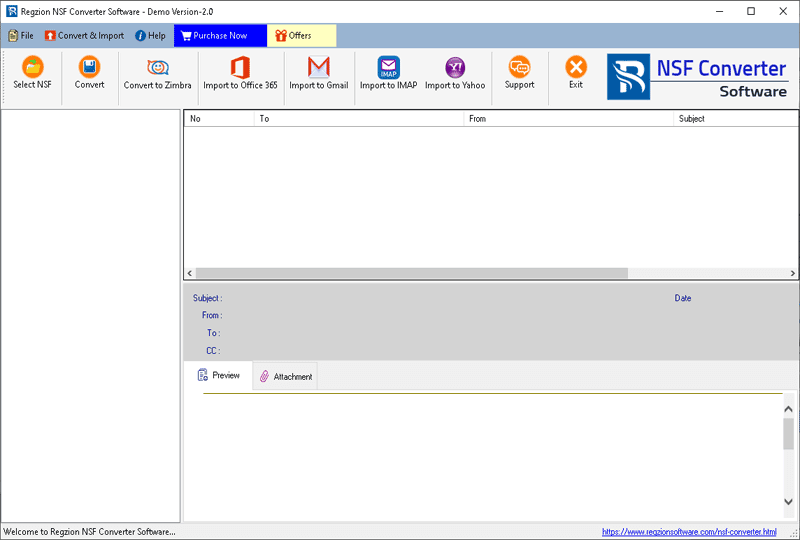
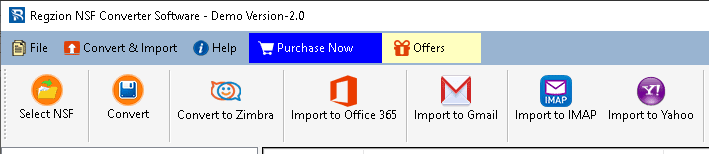
2: On the main screen, click Select NSF to begin.
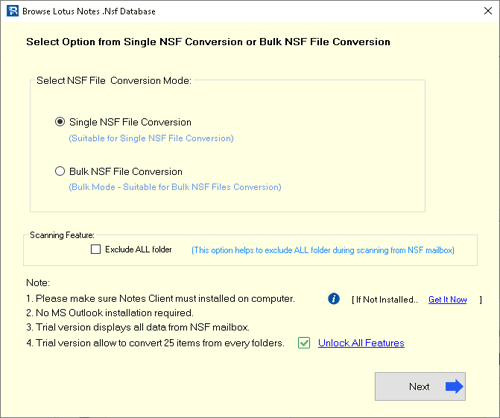
3: Choose a conversion option:
- Multiple NSF Files
- Single NSF File
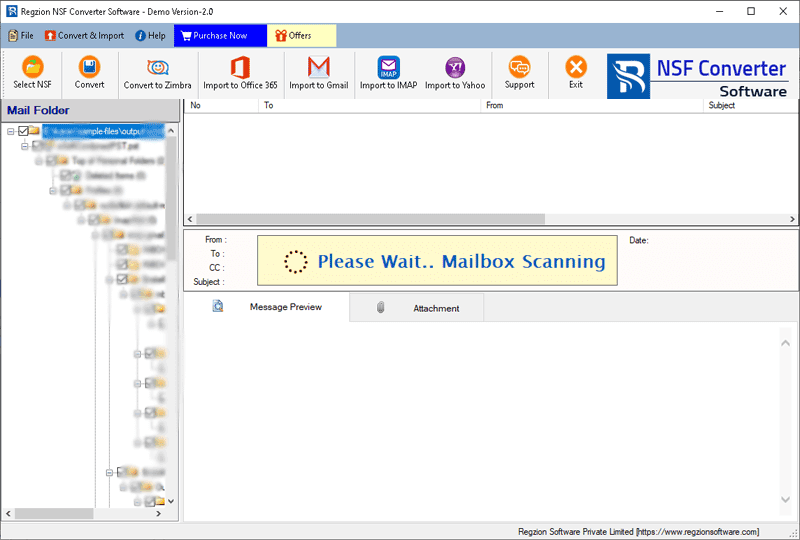
4: Scan the selected NSF file to load all Lotus Notes mailbox folders and items.
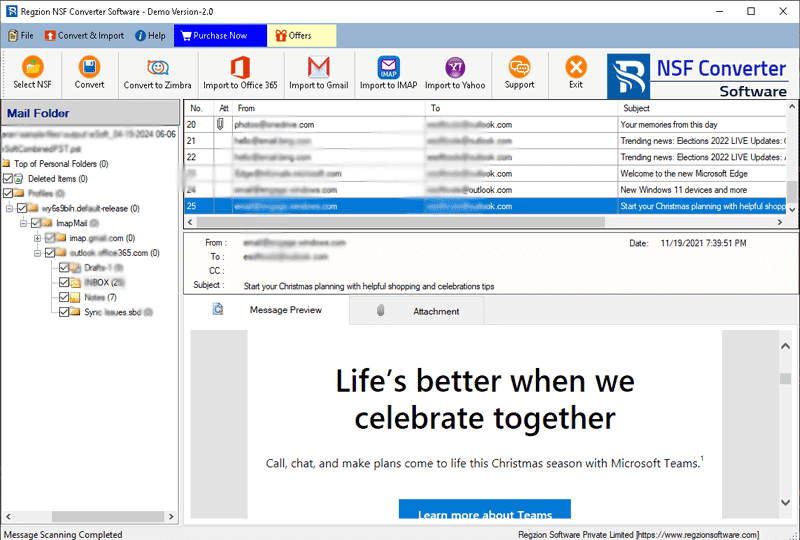
5: After the scan completes, preview the mailbox data directly within the software.
Steps to Convert HCL / IBM / Lotus Notes NSF Files
6: From the preview panel, select the folders or items you want to export and click Convert
7: Choose the required output format for conversion.
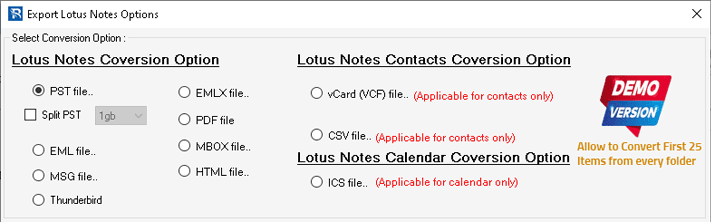
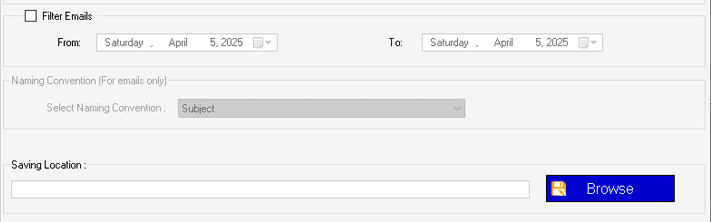
8: Set the conversion options as needed:
- Save Location: Select where the converted files will be stored
- Mail Filter: Export emails within a selected date range
- File Naming: Choose a naming format (available for MSG, EML, EMLX, HTML, and PDF)
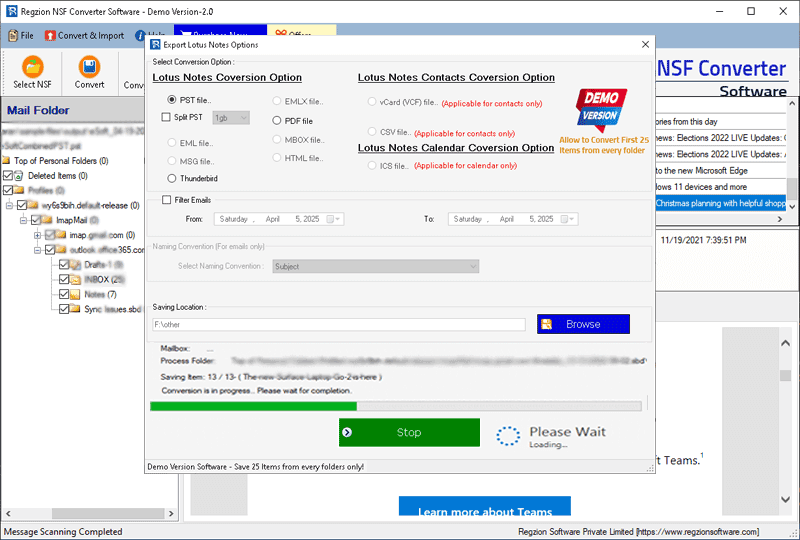
9: Review your settings and click Convert to start the process.
FAQs (Frequently Asked Questions)
Ans. Regzion Lotus Notes to Outlook Converter is a professional utility that converts IBM/HCL Lotus Notes NSF mailboxes into Outlook PST and other popular formats, while preserving folder structure and email metadata.
Ans. The software converts emails, contacts, calendars, tasks, journals, and other mailbox items from NSF files to PST and supported formats without losing formatting or attachments.
Ans. The tool can convert NSF data to PST, EML, MSG, MBOX, and other accessible formats so that users can open data in different email clients.
Ans. It supports popular IBM/HCL Lotus Notes versions (including 9.x and earlier) and can create PST files compatible with Outlook 2019, 2016, 2013, 2010, and other mainstream versions.
Ans. Some Lotus Notes conversion tools support export to Office 365, Exchange, and IMAP, so Regzion’s edition can be positioned as suitable for preparing NSF data for cloud migration using PST import or supported formats.
Ans. Yes, the converter maintains the original folder hierarchy, email headers, read/unread status, and other metadata during the conversion process.
Ans. The software supports bulk conversion of multiple NSF files, which saves time for administrators handling large or multiple mailboxes.
Ans. Professional NSF to PST tools are designed to handle large NSF files, so the converter can process sizable mailboxes efficiently, subject to available system resources.
Ans. Yes, all embedded attachments and inline images are preserved and transferred along with the emails during conversion.
Ans. Advanced solutions provide date range and item-type filters, so you can export only required emails, contacts, or calendars; such selective export can be emphasized as a key feature.
Ans. Yes, a free trial edition is typically available, allowing users to scan NSF files, preview data, and convert a limited number of items per folder before purchasing the full license.
Ans. Commonly available license types include Personal/Home, Corporate, and Technician/Enterprise editions, each with different usage rights and deployment scopes.


No Comments yet!