Are you using Windstream email to manage your emails, and do you need to migrate Windstream emails to a Gmail account? If yes, then you don’t need to worry. In this blog, we will answer your query on how to migrate Windstream emails to a Gmail account. We will explain the automated method to solve your query.
Windstream Communications is a company that provides services in Cable TV, broadband, phone, etc., to its customers under the brand name Kinetic.
Windstream Communications provides webmail service to its customers under the Kinetic brand. It allows users to create a webmail account by the domain name windstream.net, and creates a user account as username@windstream.net. Users can open their webmail account by typing the URL webmail.windstream.net in their web browser.
Read Also
Why migrate Windstream email to Gmail?
There may be several reasons to migrate from Windstream email to Gmail, and some advantages of using Gmail are explained below.
- Advanced Security: Gmail provides advanced security, like two-factor authentication, spam filtering and security updates, whereas Windstream provides basic security features to its users.
- Storage Space: Google provides a storage space of up to 15 GB to its Gmail users; however, Windstream doesn’t provide enough storage space.
- Other Services: Google, along with Gmail, provides other services like Google Sheets, Google Docs, Google Drive, Google Calendar, etc to its users.
- Good interface: Google provides a simple, reliable and modern interface to its Gmail users that makes it easy to read and manage emails.
- Closure of the Windstream account: When a user wants to close their Windstream account, they can migrate their Windstream emails to a Gmail account to protect their important emails.
How to migrate Windstream email to Gmail automatically?
The eSoftTools IMAP Backup & Migration software provides a better solution to migrate Windstream Email to Gmail Account. This tool can directly migrate Windstream emails to a Gmail account with a few clicks. The only thing you need to know is the Windstream email address and Password, along with the Gmail email address and Google application password to use this software.
The IMAP Backup & Migration tool preserves the folder hierarchy and email meta properties like To, cc, bcc, subject and Date during migration to a Gmail account. Users can try the free demo version of the software before purchasing the software.
Steps to migrate Windstream email to Gmail
Download the eSoftTools IMAP Backup & Migration tool on your Windows system.
Choose the IMAP server option from the list of options.
- Enter your Windstream email address, password and IMAP settings as
- Host: imap.windstream.net
Port: 993

Preview the Windstream mailbox folders in the tree structure on the left side.

Select the folders that are required to migrate to the Gmail account.

Click on the Import into Cloud button on the menu bar and select the Import into Gmail option.
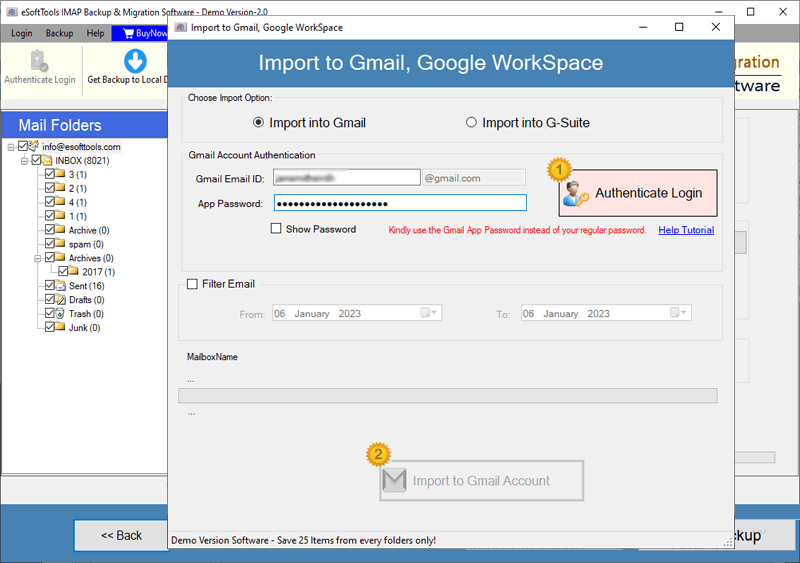
Enter your Gmail email address and Google Application password.

Apply the email filter feature (optional) to filter emails according to Date.
Click the Import into Gmail button, and the migration process will start
Why use eSoftTools IMAP Backup & Migration software?
- Save in Multiple file formats: This tool can save and back up Windstream emails in multiple file formats like PST, EML, EMLX, MSG, MBOX, HTML, MHTML, PDF and Thunderbird.
- Migration to other cloud applications: It allows users to migrate Windstream emails to different cloud applications like Gmail, Yahoo Mail, Office 365, Outlook.com and other IMAP email accounts.
- Preserve the folder hierarchy and structure: The software preserves the Windstream mailbox folder hierarchy and email properties during the backup and migration process.
- Compatibility: The application comfortably installs on all editions of the Windows Operating System, like Windows 11, 10, 8.1, 8, 7 & below editions.
FAQs
Q. Can selective mailbox folders be migrated to the Gmail account?
Ans. Yes, the user can select the Windstream mailbox folders that are displayed on the left side before migration to the Gmail account.
Q. Can I preview all the Windstream mailbox folders, like Inbox, Drafts, Sent, etc, in the software?
Ans. Yes, the user can preview all the Windstream mailbox folders and subfolders, such as Inbox, Drafts, Sent, etc, in the preview panel in the tree structure inside the software.
Q. Does this software work on the Mac operating system?
Ans. No, this software doesn’t install on the Mac operating system, but users can back up Windstream emails in the EMLX files that can be used in the Apple Mail email client.
Q. Is an internet connection required for migrating a Windstream mailbox to a Gmail account?
Ans. Yes, an internet connection is required for the software to migrate the Windstream mailbox to a Gmail account.
Q. Can this software migrate the Windstream mailbox to a Gmail account with the Gmail email account password?
Ans. No, the user needs to use a Google Application password due to the security features that are provided by Google to the user’s Gmail account.
Conclusion
Migrating a Windstream mailbox to a Gmail account becomes straightforward using the right method, like eSoftTools IMAP Backup and Migration software. The tool is designed in such a way that the whole process of migration is done with a few clicks. This tool migrates folders of the Windstream mailbox to the Gmail account without disturbing the folder hierarchy and inner data structure.


No Comments yet!