Do you have PST files and want to import PST files to your Yahoo Mail account with attachments? If so, then read this till the end. In this blog, we have explained manual and automated methods on how to import PST to a Yahoo Mail account with attachments.
PST files are generated by Outlook when a user configures the POP3 email account in Microsoft Outlook. These files are also known as Personal Storage Table and are used to store emails, contacts, calendars, tasks, notes, etc.
Yahoo Mail is the email service that is accessed with a web browser, like Google Chrome, Microsoft Edge, Internet Explorer, etc. It provides 20 GB storage space and advanced security features like two-factor authentication, spam filtering, etc, to its users. It also comes in two versions – Free & Paid.
Read Also –
Why import PST to a Yahoo Mail account with attachments?
There are many benefits of importing PST to a Yahoo Mail account, and some are explained below.
Cloud benefits: Yahoo Mail is a cloud-based application that can be accessed anytime and anywhere with a web browser and with an internet connection.
Backup option: The User can back up PST files & emails with attachments in the Yahoo Mail account and can use them when PST files get corrupted.
Cross-platform compatibility: The user can access PST files & emails with attachments on any device, like smartphones, tablets, laptops, & desktop computers with an internet connection.
Easy sharing: The user can share PST files & emails with other Yahoo Mail users by forwarding the emails after importing them to Yahoo Mail.
How to import a PST file to Yahoo Mail manually?
The user can import a PST file to Yahoo Mail by using Microsoft Outlook. Steps are explained below.
- Launch Microsoft Outlook on your system.
- Add your Yahoo Mail account to Microsoft Outlook by entering the IMAP details of Yahoo Mail.
- IMAP Server: imap.mail.yahoo.com
- Port: 993
- SMTP Server: smtp.mail.yahoo.com
- Port: 465 (SSL) or 587 (TLS)
- After configuration, go to File>> Open & Export and then to Import/Export.
- Choose the Import from another program option and click the Next button.
- Select the Outlook Data File (.pst) option and click the Next button.
- Browse the PST files that need to be imported.
- Select the Yahoo Mailbox folder as the destination folder and click the Finish button.
How to import a PST file to Yahoo Mail automatically?
The best and effective solution to import a PST file to Yahoo Mail is to use eSoftTools Outlook PST recovery software. This software can import corrupted/damaged/orphan PST files to Yahoo Mail with a few clicks. It is an advanced software that can import selected PST files & folders and has an email filter feature that can filter emails according to Date.
Steps to import a PST file to Yahoo Mail
Download and install eSoftTools Outlook PST Recovery Software on your Windows system.
Launch the software and click the Select PST button to add a PST file to the software.

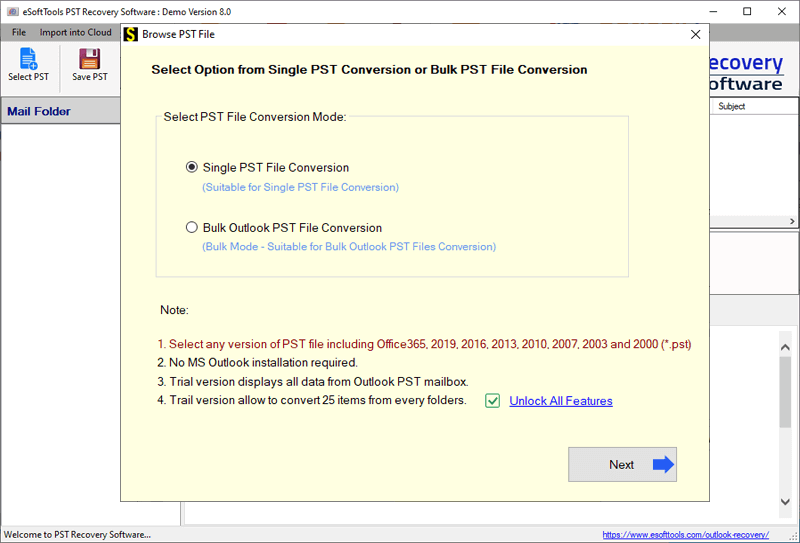
Choose the PST file conversion mode: Single PST file conversion or Bulk PST file conversion.
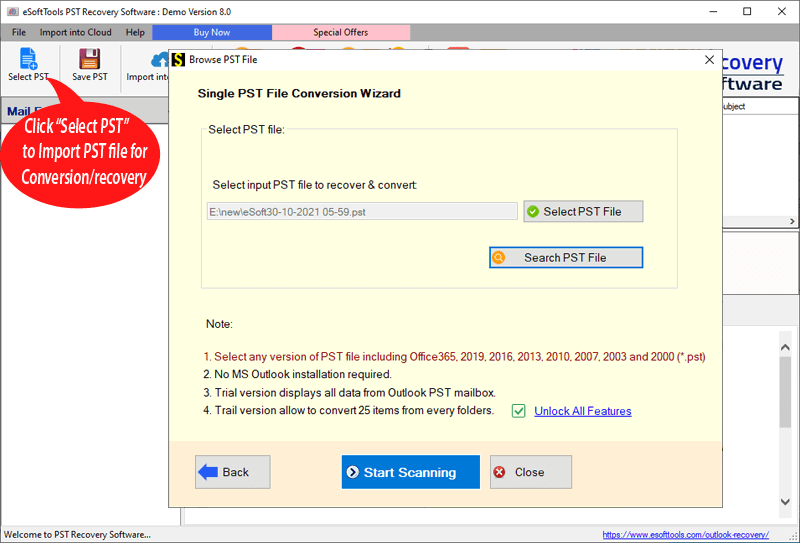
Select the PST file and click the Start Scanning button.
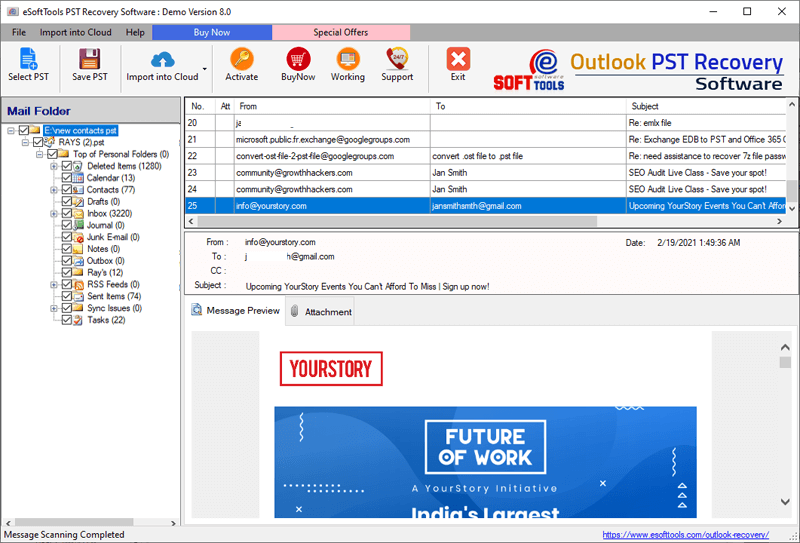
Get a preview of PST files & folders and select the files & folders that are needed for export.

Click the Import into Cloud button on the menu bar and then select the Import to Yahoo Mail option.
Enter the Yahoo Mail email address and Password.

Input the folder name where you want to store PST files & folders into the Yahoo Mail mailbox.
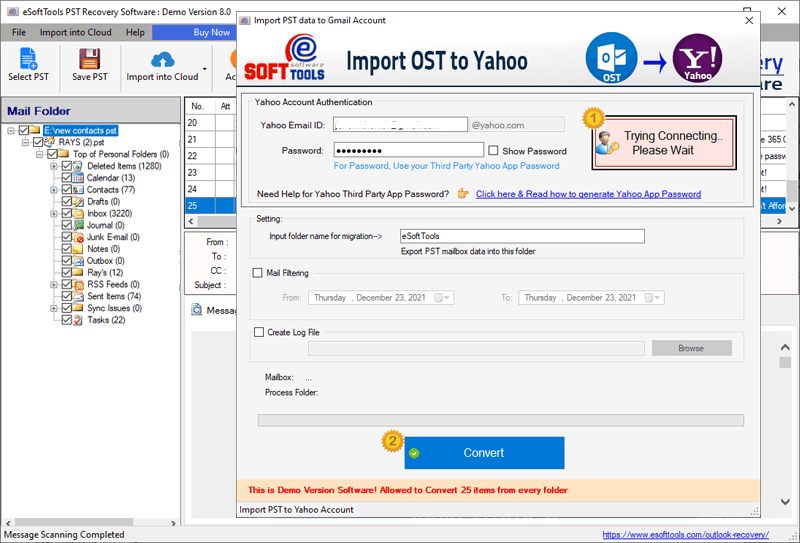
Apply the email filter feature (optional) to filter emails according to Date.
At last, click the Convert button and start the migration process.
Key features of Outlook PST Recovery Software
- Convert PST file into different email file formats like MBOX, MSG, EML, EMLX, HTML, Zimbra(.tgz), Thunderbird, MHTML, ICS, CSV, vCard, etc.
- Can convert and migrate corrupted, damaged, and orphan PST files into different file formats.
- No requirement for the installation of Outlook for conversion and migration.
- Have a user-friendly graphical interface that can be used by technical & non-technical people easily.
- Comfortably runs on any editions of the Windows Operating System, like Windows 11, 10, 8.1, 8, 7 & below versions.
FAQs
Q. Can this tool import large PST files or do bulk migration?
Ans. Yes, the automated software like eSoftTools Outlook PST Recovery software can load any size PST files without any restriction and can add multiple PST files at a time.
Q. Do the folder hierarchy and email properties get preserved after import?
Ans. Yes, the folder hierarchy and email meta-properties such as To, cc, bcc, subject, Date, and From are preserved after import.
Q. Is this tool compatible with all editions of the Windows Operating System?
Ans. Yes, this tool is compatible with all editions of Windows Operating Systems, like Windows 11, 10, 8.1, 8, 7 & below editions.
Q. Is technical knowledge required for using this tool?
Ans. No, the graphical interface of the eSoftTools Outlook PST Recovery software is designed in such a way that no technical knowledge is required.
Conclusion
Migrating a PST file to Yahoo Mail offers great benefits of cloud applications, backup option, large storage space, and advanced security features. There is a manual method available, but it requires technical knowledge and is not suitable for large PST files. The automated method can directly import the PST files & folders to the Yahoo Mail mailbox while maintaining folder hierarchy and email formatting. So, it is better to use an automated method than a manual method because it is safe and have 100% result. So, lets try the software.


No Comments yet!