Are you looking for a way to open OST files in Outlook 2016 and not get the methods? Then, read this blog to learn techniques for opening OST files in Outlook 2016. In this blog, you will learn how to open orphan OST files in Outlook 2016 using the Import/Export wizard. You will also learn how to open orphan OST files using eSoftTools OST to PST converter software.
What are OST files and PST files?
OST means Offline Storage Table. These are the database files of Outlook, which store data such as emails, contacts, calendars, tasks, notes, etc. These files depend on the Exchange Server for synchronising its data with the Exchange Server data. When mailboxes on the Exchange server get deleted, the OST files become orphans, and these files do not open in Outlook and show different types of errors.
PST (Personal Storage Table) files are also database files of Outlook, and these database files also store data such as emails, contacts, calendars, tasks, notes, etc. These database files remain offline and are easily portable.
Also Read:- How to open OST file in Gmail?
Why open OST files in Outlook 2016?
When you connect your computer to the internet, the OST file automatically synchronises with the Exchange server and gets updated. When, for some reason, the Exchange Server crashes due to a virus attack or due to malicious activity on the server OST files are not able to synchronise with the Exchange Server and become orphans. To open orphan OST files, we have to convert them to PST, and then PST files can be opened in Outlook 2016.
Methods to convert OST to PST files
Method 1: Import/ Export Wizard
- Open Outlook and open the email profile associated with the OST file.
- Click on the File tab and then select Open & Export >> Import/Export.
- Select the option “Export to a file” and hit Next.
- Now choose “Outlook Data File .pst” and press the Next button.
- Select the mailbox folder to export from.
- In the next step, select the destination for the output folder.
- Lastly, press the finish button and start the export process.
Method 2: Using eSoftTools OST to PST Converter Software
eSoftTools OST to PST Converter Software is the latest and most advanced software. You can convert OST files to PST files without the installation of Outlook in your system. You can load single and multiple OST files in the software at a single time and can preview the inner contents of OST files in the side panel of the software. In this software, orphaned and inaccessible OST files can be converted into PST files, maintaining the data integrity and hierarchy.
How to open OST files in Outlook 2016?
- Launch the software on your computer and press the “Select OST” button
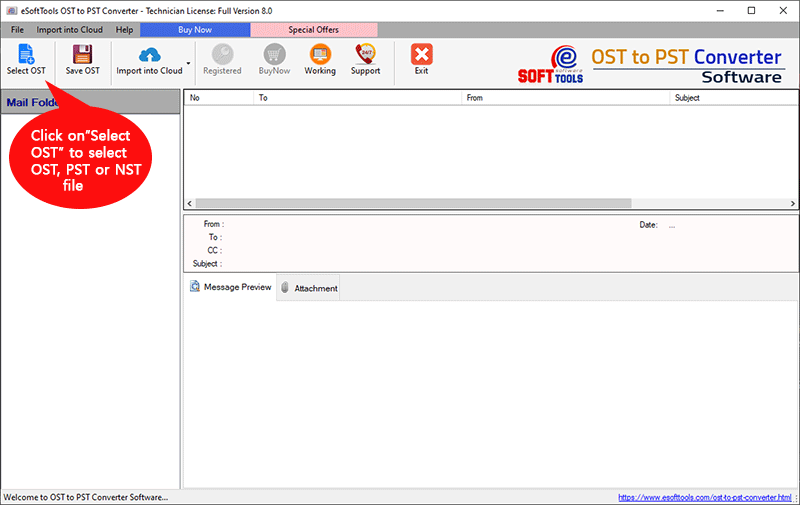
- Add OST files from local drives and load them in the OST Converter.

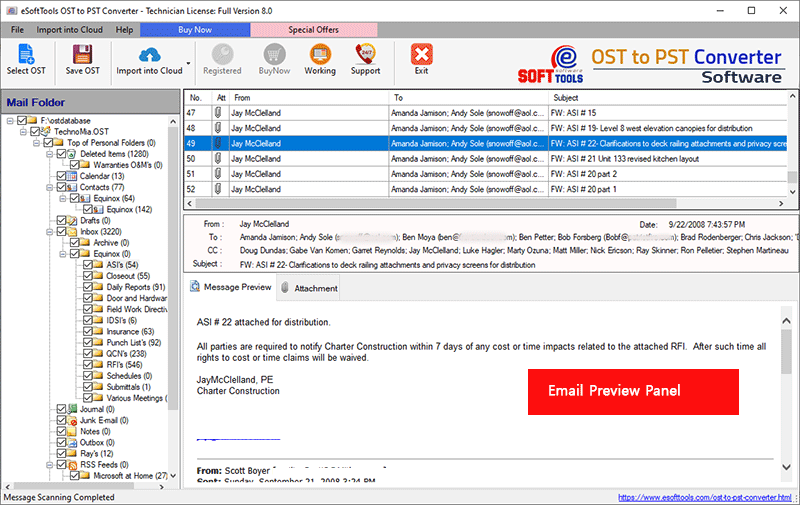
- In the side panel, you can preview loaded OST files and folders.
- Select the necessary mailbox folders from the OST files for exporting them.
- Press the ‘Save OST’ button and select the ‘Export to PST’ radio button from the OST conversion options.

- If you want to split an OST file, select the ‘Split PST’ option and choose a size from the different size ranges.

- Browse to the location where you want to save the PST file on your computer.
- Choose the ‘Mail Filter’ option if you want to filter email (based on date).
- Click on the ‘Convert’ button and begin the process of OST to PST conversion.

Conclusion
You can’t open inaccessible and orphaned OST files without converting them to PST files. You can do this manually using Outlook’s Import/Export wizard, but it’s time-consuming. Use the eSoftTools OST to PST Converter software to convert OST files to PST files. This software can easily and quickly convert orphaned and corrupted OST files to PST files and open OST files in Outlook 2016.


No Comments yet!