CSV and vCard are two popular file formats for storing contacts. Do you have a CSV file containing a contact list that you want to convert into vCard format so that you can open it in Microsoft Outlook, Apple Contacts, Google Contacts, or other compatible applications? If yes, then you don’t need to worry. In this blog, we have explained both manual and automated methods for converting CSV to vCard format.
User Query: Hello, I run a cable TV business, and I have a CSV file that contains a list of contacts of my customers. Now I want to open the CSV file in my email client so that I can manage contacts. My email client supports the vCard files, so can anyone suggest a method to convert CSV to vCard format?
CSV, also known as Comma-Separated Values, is a text-based file that stores data in tabular format, with each value separated by a comma, where each row represents a new record. This file format usually runs in a spreadsheet software like Microsoft Excel and Google Sheets.
vCard, also known as a Virtual Contact File, stores the complete contact information. This file format is supported by many email clients like Microsoft Outlook, Apple Mail, etc and runs on different contact management applications like Google Contacts, Zoho CRM, etc.
Why convert CSV to vCard format?
There are many reasons to convert CSV to vCard format, but few are explained below.
Smaller size: The size of the vCard file is smaller than the CSV file, so it takes less storage space.
Easy sharing: The vCard files are easy to share and can be shared by emailing or using a messaging app.
Accessibility: CSV files don’t open in all operating systems, whereas vCard files open in different operating systems, like Windows, Mac, Linux, etc.
Corruption: CSV file gets easily corrupted and damaged as compared to the vCard file.
How to convert a CSV to a vCard file manually?
If you want to open a CSV file to a vCard file manually user can do this using Microsoft Outlook.
- Open Microsoft Outlook on your system.
- Go to File>> Import & Export.
- Select the option Import from another program or file and click the Next button.
- Choose the option Comma-Separated Values (DOS) and click the Next button.
- Browse the CSV file location and add the CSV file to Outlook.
- Select the destination folder as Contacts and click the Next button.
- Complete the Import process.
- Now, again go to File>> Import & Export.
- Choose the option Export to a File>>vCard file.
- In the end, save the file to your desired location on your computer.
Limitations of the Manual Method
- Microsoft Outlook installation is required.
- Technical knowledge is required to perform the steps.
- It is a time-consuming process for a large contact list.
How to convert a CSV file to a vCard file automatically?
The professional and automated method to convert a CSV file to vCard format is to use eSoftTools Excel to Outlook converter software. It is the safe and quick way to export all contacts to a vCard file without any data loss. The simple graphical interface of the software allows non-technical users to easily convert a CSV file to a vCard file. This tool even works without the installation of any email client like Microsoft Outlook.
Steps to convert a CSV file to a vCard file
Download and install the eSoftTools Excel to Outlook converter on your Windows system.
Press the Browse Excel file button to load the CSV file into the software.

Software previews all the data items of the CSV file inside the software.

Map the CSV contact fields with the vCard contact field.

Choose the export option as vCard of a different version- 2.1, 3.0, 4.0.

Choose the option from Create a Separate vCard file or Create a single vCard file.
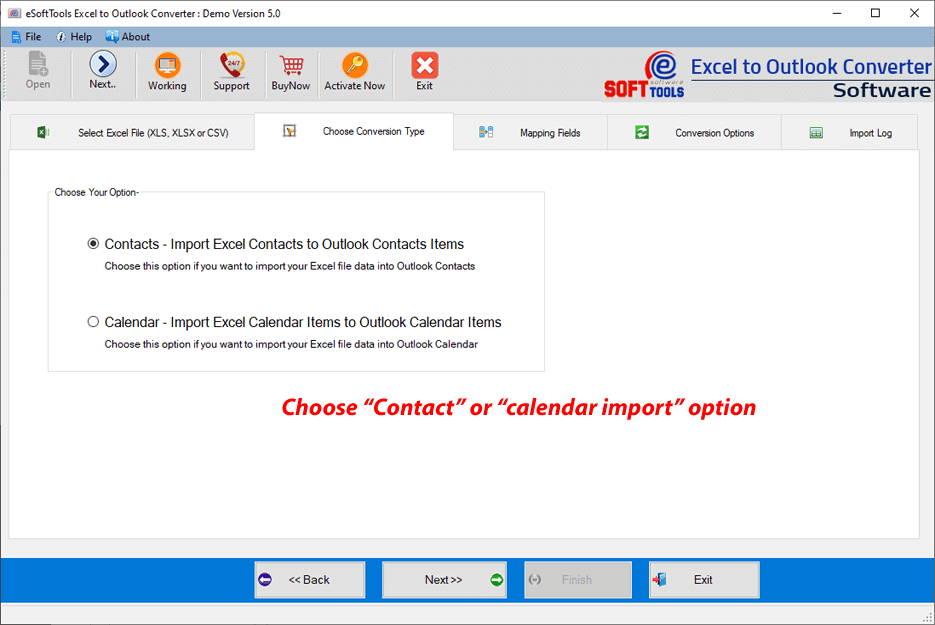
Browse the location to save the vCard file on your computer.

Click the Next button, and start the conversion process.

Benefits and features of the Excel to Outlook converter software
- It converts all the contacts in a CSV file to a vCard/VCF file in bulk.
- The tool converts the contacts into different vCard versions- 2.1, 3.0, 4.0.
- Comfortably runs on all editions of Windows from Windows 11 to the previous versions.
- A simple interface is for all people, technical & non-technical.
- Preserves all the contact information while converting to vCard.
Conclusion
Migrating CSV contacts to a vCard is beneficial for using the vCard file in different operating systems and using it in different email clients like Microsoft Outlook, Google Contacts, etc. The manual method is available, but it requires Outlook installation and is not suitable for bulk contact conversion. The automated method, like eSoftTools Excel to Outlook converter Software, is suitable for bulk conversion and performs faster without requiring technical knowledge. To check how the software works user can use the free demo version of the software.
FAQs
Q. Is a vCard file compatible with Android phones?
Ans. Yes, vCard files open in different operating systems, like Windows, Mac, Linux, etc, and on different email clients.
Q. Does converting CSV to vCard preserve the original CSV file?
Ans. Yes, eSoftTools Excel to Outlook converter preserves the original CSV file while converting CSV files to vCard.
Q. Which tool is best for converting CSV contacts to a vCard file?
Ans. The eSoftTools Excel to Outlook converter is the best tool for converting CSV contacts to a vCard/VCF file. It converts without losing any data.
Q. Will all contacts from the CSV file save to the single vCard file?
Ans. Yes, by selecting the option of creating a single vCard file, this tool saves all the contacts to a single vCard file.
Q. Does this tool work on Windows 7?
Ans. Yes, this tool works on all editions of the Windows Operating System, like Windows 11, 10, 8.1, 8, 7 & below versions.


No Comments yet!