Are you seeking a method to Export Lotus Notes Contacts to vCard/VCF? If yes, then you are not alone. Many users want to know how to export Lotus Notes Contact to vCard/VCF. In this blog, we have described an automated method to solve your query and tell various reasons for doing so.
Overview
Lotus Notes (or HCL Notes) is an email client that stores all the data like emails, contacts, calendars, tasks, notes, etc in the NSF(Notes Storage Facility) file and stores contacts in the Names.nsf file.
Now due to the upcoming of many advanced email clients in the market, many users are switching to other email clients according to their needs and requirements. If they want to switch to another email client and want to use their old data in the new email client then they have to do a conversion and change the old data file format to the new file format.
Now if you want to export contacts from Lotus Notes( or HCL Notes) to vCard or VCF then you have to do a conversion of NSF files to vCard or VCF.
vCard or VCF is a file that stores contact information like names, addresses, telephone numbers, email addresses, etc. It is a digital card file that stores contact information and other details.
Reasons to export Lotus Notes Contacts to vCard or VCF
In the present time, vCard is the best option to store contacts in it and some of the reasons to convert Lotus Notes Contacts to vCard are
Supported by many Platforms: After converting Lotus Notes Contact to vCard or VCF you can use vCard file to number to email clients, android phones, iPhones, Tablets, etc. You can store and access contacts on a variety number of devices.
Create Backup of contacts: After converting contacts to vCard you can use vCard file as a backup option. This file format can be stored and used in a variety of devices like computers, laptops, smartphones, etc.
An automated solution to export Lotus Notes Contacts to vCard or VCF
The best-automated solution to export Lotus Notes Contacts to vCard or VCF is to use eSoftTools NSF to PST converter software. This software allows you to directly convert Lotus Notes(HCL Notes) contacts to vCard/VCF format with a few clicks. Its intuitive and user-friendly graphical interface allows both technical and non-technical users to use it easily.
Also Read:- How to Export Contact from Lotus Notes to Excel CSV file?
Benefits and features to export data from Lotus Notes Database
- Convert a single NSF mailbox and multiple mailboxes into a PST at a time.
- You can Export Lotus Notes Contacts to vCard/VCF and other file formats also such as EML, EMLX, MBOX, HTML, etc.
- In the preview panel, you can see the inner content of the NSF file and select the files and folders that you want to convert into PST files.
- Export NSF file contacts to vCard and calendars to ICS format.
- It can work with NSF files of all editions of IBM Lotus such as 10.0.1, 9.0.1, 9.0, 8.5, 8.0.2, 7.0, 6.5, 6.0.
- In the demo version, you can convert 25 files from each folder of the NSF file to PST.
- Migrate NSF files to cloud-based applications like Gmail, Yahoo Mail, Office 365, Outlook.com and IMAP servers.
Steps to export Lotus Notes contacts to vCard
- Download, install and launch eSoftTools NSF to PST converter software in your system.
- Click the Select NSF button to add/load the NSF files in the software.

- Choose any one of the options- Single NSF conversion (to add a single NSF file) or Bulk NSF conversion( to add multiple NSF files).
- Preview the NSF file contents such as email, contacts, calendars, Notes, tasks, etc. in the preview panel and select the contacts files/folders to be converted to vCard.

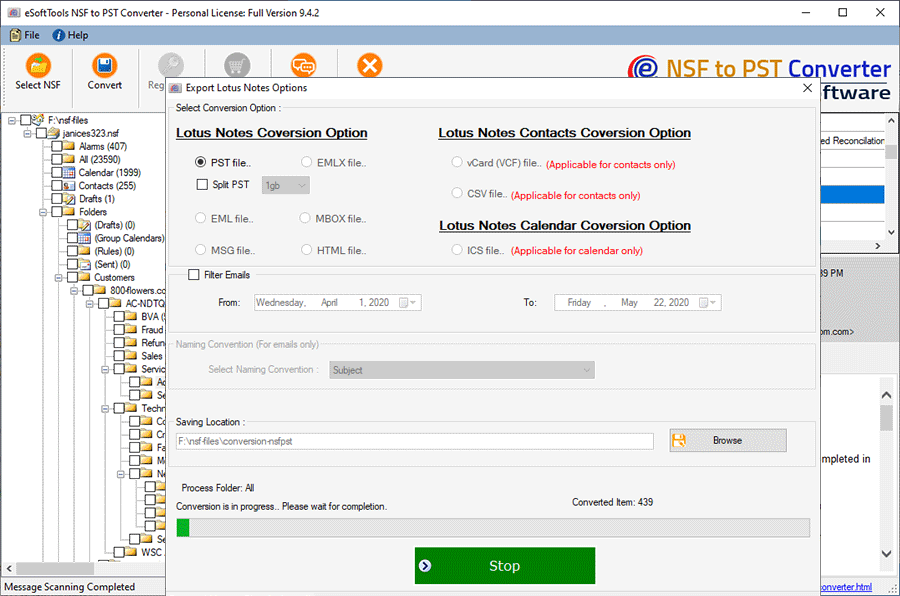
- Click the convert button and the next window will appear.
- Select the vCard format from the conversion format from the available format by clicking the radio button.
- Apply email filtering and naming convention features if you want.
- Browse the saving location for the converted file to save on your system.

- Click the Convert button and start the conversion from NSF to vCard.
Conclusion
This article describes the reasons and automated methods to convert Lotus Notes contacts to vCard. There are manual methods also available but they don’t give 100% results and there are chances of data loss. The automated method is easy, reliable and you get additional features in this tool.


No Comments yet!