Many users want to export emails from Windows Live Mail to MBOX files. If you also want to do the same, then this blog is for you. In this blog, we will explain the easiest way to convert Windows Live Mail to an MBOX file quickly.
Overview
Windows Live Mail is one of the free email clients. With the help of this email client, users can easily manage their various email accounts. It helps users to manage and protect emails, contacts, calendars, and much more.
But now this application has been discontinued, and its updates have stopped. After its closure, Windows Live Mail users are using other free email clients. Like Thunderbird, Apple Mail, Pocomail, Entourage, Eudora, Opera Mail, etc.
These free email clients use MBOX files to store users’ mailboxes and import/export email information.
Also Read:- How to Transfer/Migrate Windows Live Mail to Yahoo Mail?
Smart Solution to Convert Windows Live Mail to MBOX File
Quickly converting Windows Live Mail to MBOX file is now possible with eSoftTools Windows Live Mail Converter software. It is an automated application that instantly transfers and saves WLM emails to MBOX files without any data loss. You can also convert WLM files to multiplayer formats.
Key Features of Windows Live Mail Converter software
- Easily convert Windows Live Mail to a MBOX file.
- Save all emails from different WLM mail folders into a single MBOX file.
- WLM also offers to create separate MBOX files to save mail folders separately.
- Viewed all emails with attachments of WLM profiles before conversion.
- This software works in all editions of Windows O/S (including- win11, 10, 8.1, 8, 7, XP, & Vista).
- The graphical user interface of this software is very clean, so all users can use it easily.
Steps to Convert Windows Live Mail to MBOX File
- Download, install, and run Windows Live Mail Converter on your computer.

- Click on the “Select WLM Mailbox” button from the top menu bar.
- From the open screen, choose the file selection option: “Auto-detect location” and “Select Manual Live Mail Store Location”.
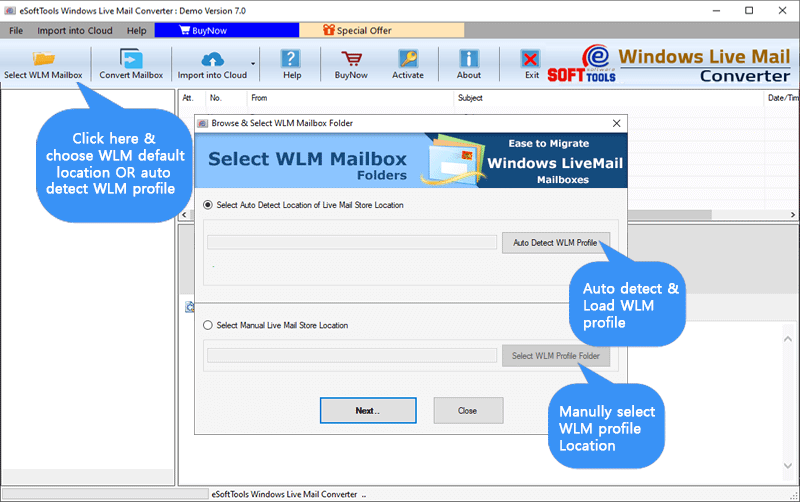
- After selecting and adding the live profile and email folders, press the Next button.
- The software will load all WLM mailbox email items and show a live preview of all emails.
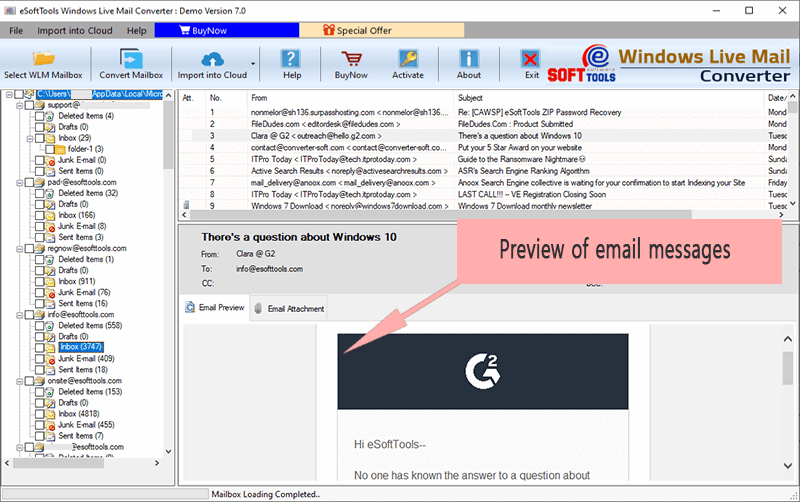
- Select the required mail folders and click on the Convert Mailbox button from the menu.
- To transfer Windows Live Mail emails to MBOX, select the “Single MBOX for all WLM emails” or “Separate MBOX for each mail folder” option.

- Select the mail filter option and provide the location to save the output MBOX files.
- Now hit the Convert button and export emails from Windows Live Mail to MBOX files.

Conclusion
Through this blog, we have explained the easiest way to convert Windows Live Mail to an MBOX file quickly. So that you can convert Live Mail to an MBOX file without any problem and without losing any data. Download its trial version now to see all its functions for free.
FAQ
Can this software convert/export Live Mail emails in bulk?
Yes, this software can convert and export emails from Live Mail to other formats like PST, EML, or MBOX.
Is this software able to export Live Mail to an Office 365 account?
Yes, you can export from your Live Mail to an Office 365 account using this software.
Can I select specific folders for conversion with this software?
Yes, you can preview and select specific folders or individual emails for conversion with the help of this software.
Is there a free demo version of the Windows Live Mail Converter software available?
Yes, this software has a free demo version available that allows you to export 25 items from all your WLM folders for free.
Can I run this software on Windows 7 and below?
Yes, you can run this software with all versions of the Windows operating system, like Windows 10, 8.1, 8, 7, and XP.


No Comments yet!