Many users want to back up their Gmail emails and transfer them to another Gmail account. If you’re one of them, this blog is for you. In this blog, we’ll explain the easiest way to backup Gmail emails to another Gmail account.
Overview
Gmail is a web-based email application that allows users to share email from the web. To protect users’ email account data, Google provides 15 GB of storage space on its cloud servers for each user account.
When sharing emails, many times users face the problem of using up all the storage space in their Gmail accounts to save all the emails. Therefore, users prefer to transfer their email profile data from one Gmail account to another.
Also Read:- How to Download Emails from Gmail in Bulk?
Smart solution to Backup Gmail Emails to Another Gmail account
To back up Gmail emails to another Gmail account, use eSoftTools Gmail to Gmail Migration software. It is a tool that can download emails from Gmail accounts in various file formats and enables users to transfer data from one Gmail account to another. It provides advanced functionality to quickly transfer emails between different Gmail accounts and allows you to select only the required emails from a list of all email folders in a Gmail account.
Features of eSoftTools Gmail to Gmail Migration software
- Backup Gmail emails to another Gmail account by following a few easy steps.
- Users can keep the folder hierarchy and email attributes the same when migrating their email folders.
- Migrate emails from Gmail as well as Office365, Yahoo, Yandex, iCloud, Zoho, and other email apps with this tool.
- This software also provides the facility to back up the emails of a Gmail account to the user’s local storage.
- It supports saving Gmail emails to PST, EML, EMLX, MSG, HTML, MHTML, and MBOX files.
- This software has a smart and easy graphical interface, which is accessible to both technical and non-technical users.
- It can work in all versions of the Windows operating system (including Windows 11).
How to Backup Gmail Emails to Another Gmail account?
- Run the Gmail email migration tool on your Windows computer.
- Now choose Gmail or G Suite from the IMAP mail app options.

- For third-party apps, enter your Gmail account email address and Google app password.

- Enter your required Gmail account information and click the “Login” button.
- After logging in to your Gmail account, load all the mail folders from your Gmail account.

- Select the mail folder and click the “Import to Cloud” button.
- Select the “Import to Gmail” option from the cloud import options.

- Enter the email address of the Gmail account and the password of the third-party app into which you want to import emails.
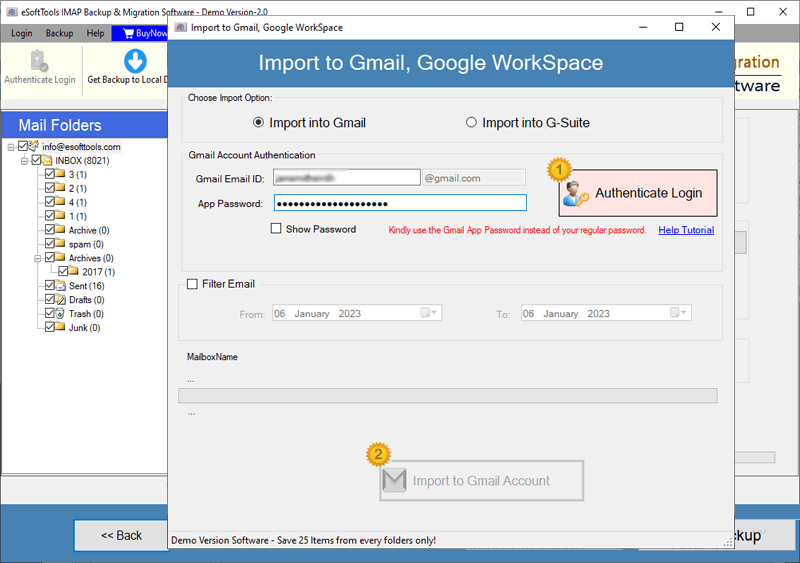
- Provide a custom name after selecting the Input folder name option for migration.
- Click on the ‘Import to Gmail’ button to back up Gmail emails to another Gmail account.

Conclusion
In this blog, we’ve explained a simple method to back up Gmail emails to another Gmail account. Using the eSoftTools Gmail to Gmail Migration software, users can easily back up Gmail emails to another Gmail account without any issues. Users can also try a free demo of the software.
FAQ
Will this software allow users to export emails from a G-Suite or Google Workspace account?
Yes, with this tool, users can migrate emails from both Gmail and G-Suite/Google Workspace accounts without any hassle.
Does this software provide any additional features to export emails of a specific date range?
This software also features a date range filtering feature. Users can easily export emails from selected dates by selecting the email start and end dates.
Will this software allow users to export emails, including attachments and header details?
Users can export emails from a Gmail account, including attachments and all related information such as recipients, BCC, CC, subject, message body, and other details.
Does this software require any additional applications?
Users can transfer emails from one Gmail account to another without the need for any additional applications.
What version of the Windows operating system do I need on my computer to run this Gmail migrator?
The tool works on all versions of Windows (including Windows 11, 10, 8.1, 8, 7, XP, Vista, and below).


No Comments yet!